DirectX End-User Runtime Web Installer: What It Fixes and How to Install
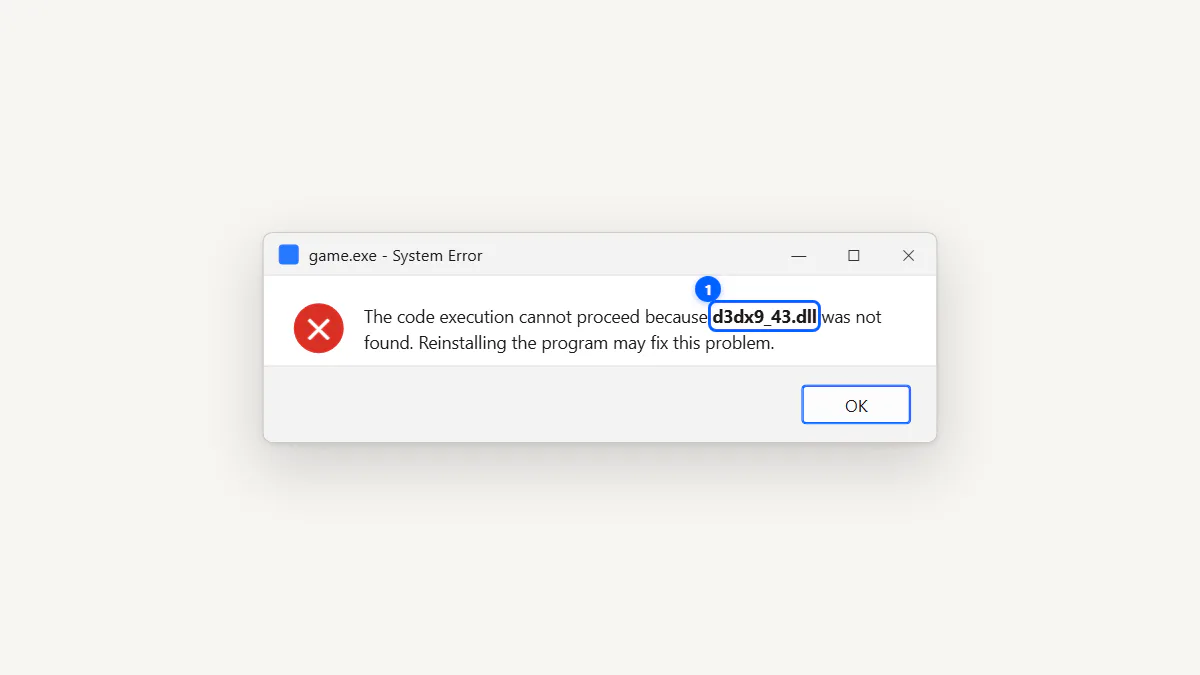
Game throwing a "d3dx9_43.dll is missing" error? The DirectX End-User Runtime web installer (dxwebsetup.exe) fixes it by adding legacy DirectX files that modern Windows leaves out.
The DirectX End-User Runtime installs legacy DirectX 9/10/11 helper libraries (D3DX, XInput 1.3, XAudio 2.7, XACT) that older games still need. It does not upgrade Windows to a newer DirectX. Download the ~300 KB dxwebsetup.exe from Microsoft, run it, untick the extra offer, and let it download about 100 MB of components. The offline alternative is the June 2010 redistributable.
What the DirectX End-User Runtime Actually Installs
The DirectX End-User Runtime (sometimes called the DirectX runtime or dxwebsetup) adds a specific set of legacy helper libraries to your System32 and SysWOW64 folders. These include:
- D3DX9, D3DX10, D3DX11 — the old Direct3D helper libraries (dozens of versioned DLLs like d3dx9_43.dll)
- XInput 1.3 — the legacy game controller library (xinput1_3.dll)
- XAudio 2.7 — the old audio processing library
- XACT — the legacy audio engine
- D3DCompiler_43 — the old shader compiler
- X3DAudio — 3D audio positioning
It does not install or update DirectX 12. It only fills in legacy files that modern Windows omits because newer games don't need them.
Missing DLL Errors This Fixes
| DLL File | Typical Error Message | Fixed by Runtime? |
|---|---|---|
d3dx9_43.dll | "d3dx9_43.dll was not found" | ✓ Yes |
d3dx9_42.dll | "d3dx9_42.dll is missing" | ✓ Yes |
d3dx10_43.dll | "d3dx10_43.dll not found" | ✓ Yes |
d3dx11_43.dll | "d3dx11_43.dll is missing" | ✓ Yes |
xinput1_3.dll | "xinput1_3.dll was not found" | ✓ Yes |
XAudio2_7.dll | "XAudio2_7.dll is missing" | ✓ Yes |
d3dcompiler_43.dll | "d3dcompiler_43.dll not found" | ✓ Yes |
x3daudio1_7.dll | "x3daudio1_7.dll is missing" | ✓ Yes |
Install With dxwebsetup: Step by Step
- Go to the Microsoft Download Center ↗ and download
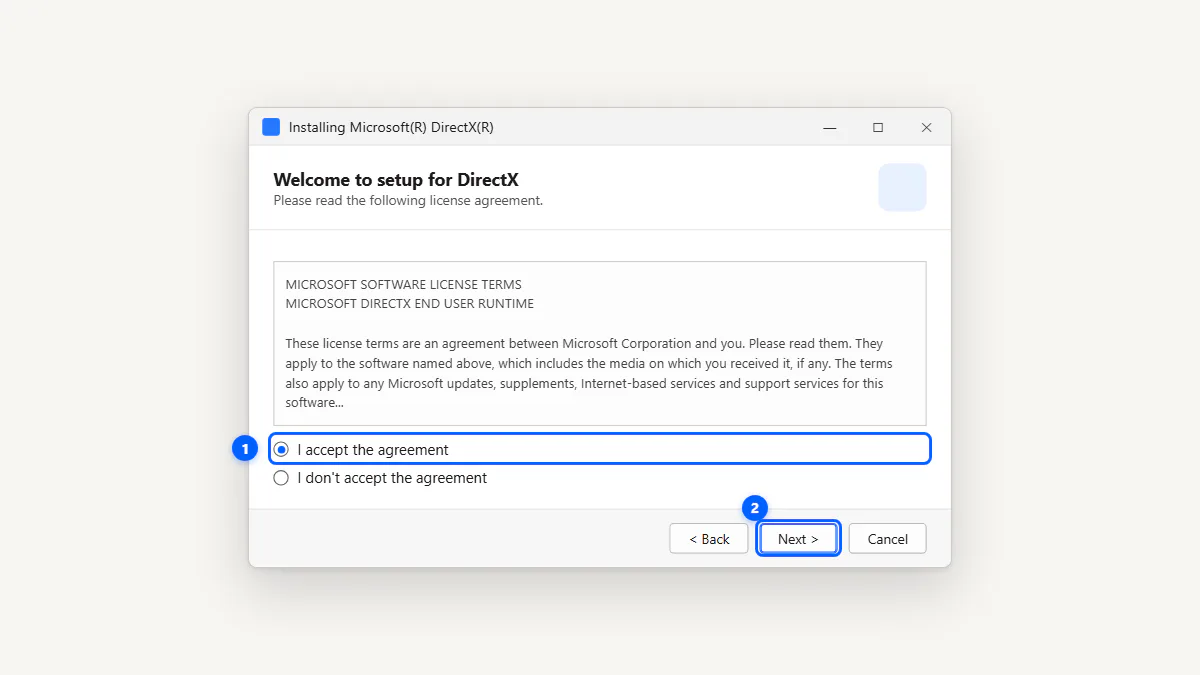
dxwebsetup.exe(~300 KB). - Run the installer. Accept the license agreement.
- Uncheck the optional extra offer (e.g., Bing Bar or Bing Desktop). This is a bundled offer that you don't need.
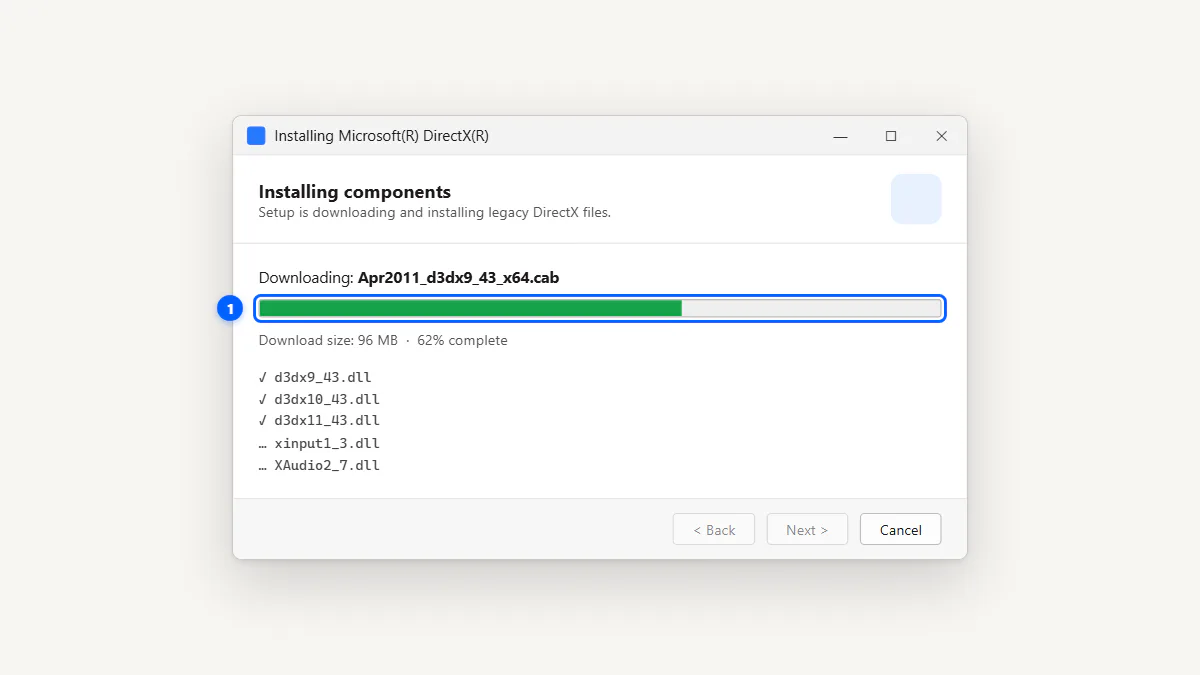
- Click Next and wait for the components to download and install. This requires an internet connection and takes 1–3 minutes depending on your speed.
- Restart the game that was showing the missing DLL error. No system reboot is usually needed.

Web Installer vs June 2010 Offline Redist
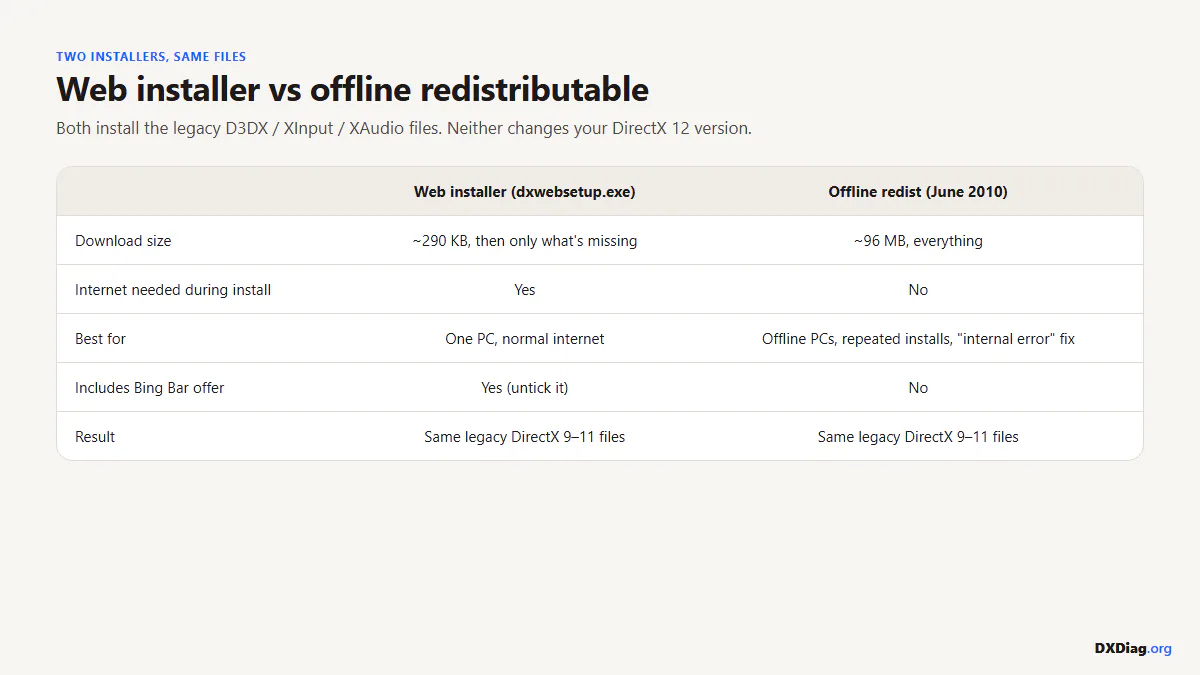
| Feature | Web Installer (dxwebsetup.exe) | June 2010 Offline Redist |
|---|---|---|
| Download size | ~300 KB initial, ~100 MB during install | ~96 MB (one file) |
| Internet needed? | Yes, during installation | No, everything is in the download |
| Best for | Single PC with internet access | Multiple PCs, offline environments, IT deployment |
| Extra offer? | Yes (uncheck it) | No |
| Microsoft link | Download ↗ | Download ↗ |
DirectX Runtime Install Failed? Try These Fixes
- Run as Administrator: Right-click
dxwebsetup.exe→ Run as administrator. - Use the offline installer: The web installer depends on your internet connection. If it fails, download the June 2010 offline redist ↗ instead.
- Temporarily disable antivirus: Some antivirus software blocks the installer's network activity. Pause it during installation.
- Clear the temp folder: Delete the contents of
%TEMP%and retry. Corrupted temp files can break the install. - Run SFC and DISM: If installation keeps failing, underlying system file corruption may be the cause. Run
sfc /scannowfollowed byDISM /Online /Cleanup-Image /RestoreHealth.
Do You Still Need It on Windows 11?
Yes, if you play any game released before ~2015 that uses legacy DirectX libraries. Windows 11 includes DirectX 12 but does not include the older D3DX, XInput 1.3, or XAudio 2.7 libraries.
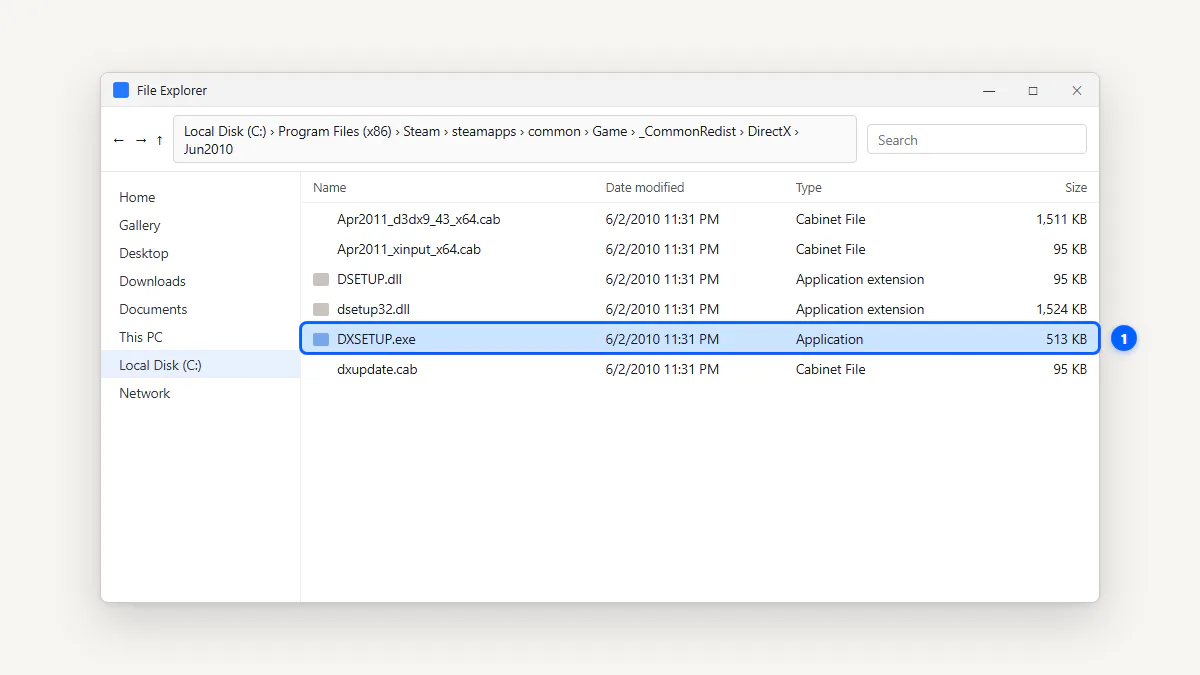
Many Steam, GOG, and Epic games install the DirectX End-User Runtime automatically from their _CommonRedist folder during first launch. You've probably seen this as a quick installer popup before a game starts for the first time.
Frequently Asked Questions
-
It's a Microsoft installer that adds legacy DirectX 9/10/11 helper libraries (D3DX, XInput 1.3, XAudio 2.7, XACT) to your system. These libraries are needed by many pre-2015 games but aren't included in modern Windows.
-
Yes, when downloaded from Microsoft's official Download Center. It's digitally signed by Microsoft Corporation. Be cautious of third-party sites offering the same filename — always download from microsoft.com ↗.
-
No. The End-User Runtime only installs legacy helper libraries. It does not change, update, or replace your DirectX 12 installation. DirectX 12 updates come through Windows Update.
-
Yes, if you play older games that need legacy DLLs like d3dx9_43.dll. Windows 11 includes DirectX 12 but does not include these legacy helper files. Many Steam and GOG games install it automatically.
-
The web installer (
dxwebsetup.exe) is about 300 KB. It downloads approximately 100 MB of components during installation. The offline June 2010 redistributable is about 96 MB total. -
Install the DirectX End-User Runtime: download
dxwebsetup.exefrom Microsoft, run it, uncheck the optional extra offer, and let it install. This adds d3dx9_43.dll and dozens of other legacy DirectX files to your System32 folder. -
Don't. Downloading individual DLLs from third-party sites is unsafe — they may be modified, malicious, or the wrong version. Always use the official DirectX End-User Runtime to install the complete, verified set of files.