DxDiag: The DirectX Diagnostic Tool, Explained in Plain English
Support asked for your DxDiag? Or you just want to know what's inside your PC? Press Windows + R, type dxdiag, hit Enter — then use this page to make sense of what you see.
DxDiag (DirectX Diagnostic Tool) is a free program built
into every Windows version since Windows 98. You'll find it at C:\Windows\System32\dxdiag.exe. To open it: press Win + R, type dxdiag, press Enter. It loads in about 5–10 seconds and shows your
operating system, CPU, RAM, DirectX version, GPU and VRAM, driver
versions, and audio and input devices across the System, Display,
Sound, and Input tabs. To save a report, click Save All Information… and choose where to save the DxDiag.txt file. No download needed.
What DxDiag Actually Does (and Doesn't)
DxDiag — short for DirectX Diagnostic Tool — is a lightweight system utility that Microsoft has shipped with Windows since 1998. When you launch it, the tool scans your hardware and the DirectX components installed on your machine, then displays everything in a tabbed window.
The dx diagnostic tool reads your operating system version, processor, memory, GPU name and VRAM, driver versions and dates, audio devices, input controllers, and whether each DirectX component is signed and working. It's the first thing tech support asks for because it packs your entire hardware profile into a single text file.
What DxDiag doesn't do is equally important. It can't fix driver problems, run benchmarks, monitor temperatures, or test RAM stability. It's a viewer, not a repair tool. If you need fixes, check the troubleshooting sections below — or jump straight to the DirectX End-User Runtime if a game is throwing missing DLL errors.
The tool has barely changed since its early days. Microsoft last updated the interface to add the Render tab (for laptops with hybrid GPUs) and Feature Level reporting, but the core idea is the same: give you and support agents a quick, reliable snapshot of your PC.
Open DxDiag in 5 Seconds
The fastest way: press Windows + R, type dxdiag, and hit Enter. That's it — the directx diagnostic tool opens in about five seconds.
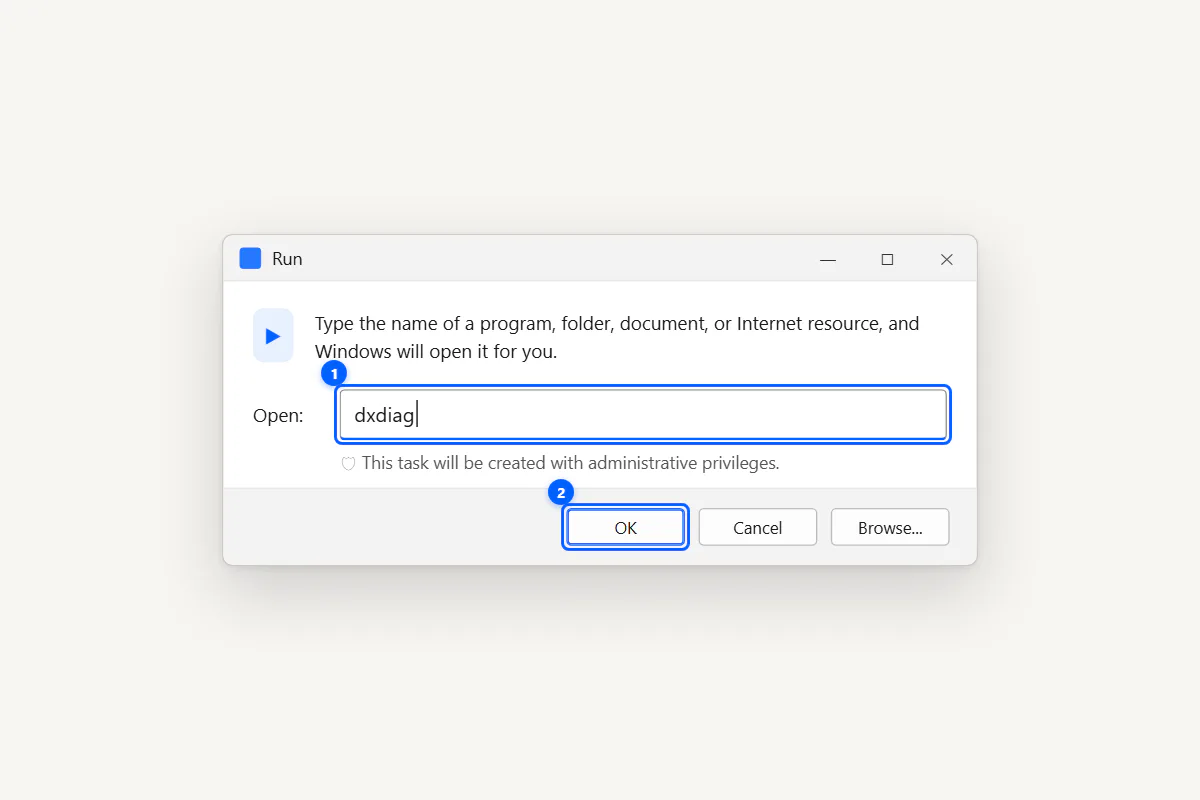
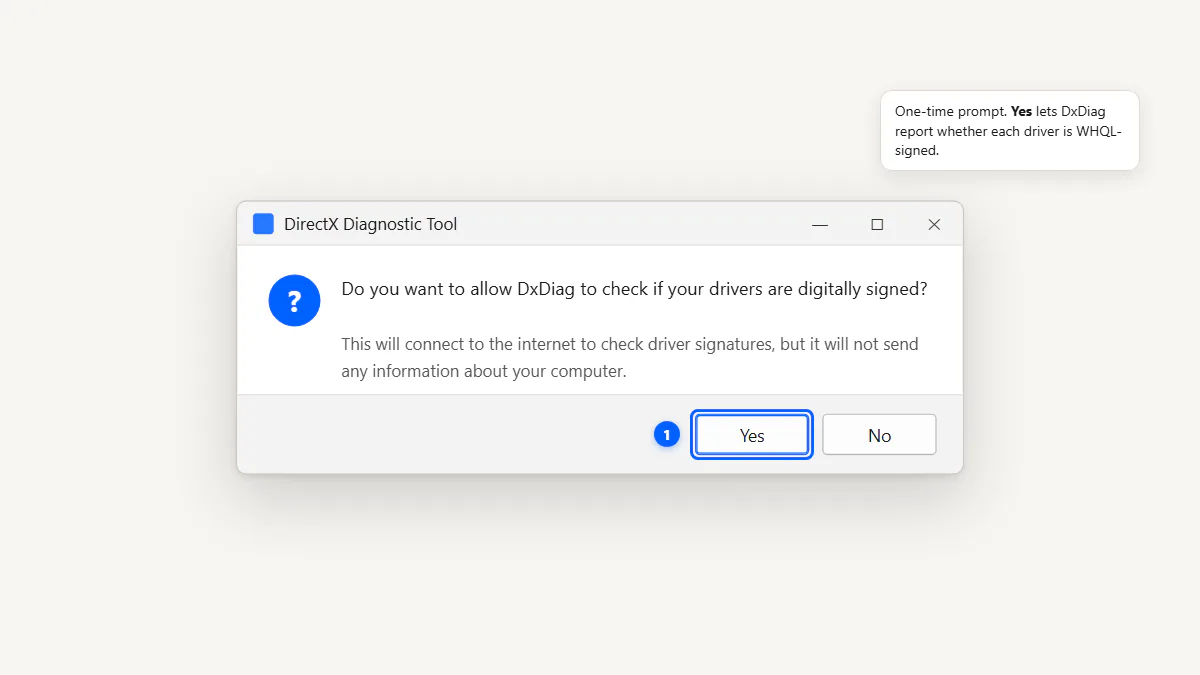
You can also open it from Start Search, Command Prompt (dxdiag), or PowerShell. If it's your first time, you'll see a prompt asking
whether to check if drivers are digitally signed — click Yes.
For all the ways to run DxDiag — including
command-line switches like dxdiag /t for silent export — see
the dedicated guide.
Decode Your DxDiag Report Instantly
Paste your DxDiag report or drop the DxDiag.txt file below. Nothing uploads — all parsing happens in your browser.
Drop DxDiag.txt here or click to select a file
Accepts .txt files up to 1 MB
Every DxDiag Tab, Field by Field
DxDiag organizes your hardware data across four to five tabs. Here's what each one shows and when you'll need it.
| Tab | Key Fields | Use It When… |
|---|---|---|
| System | OS, CPU, RAM, DirectX Version, BIOS | Checking basic specs or game requirements |
| Display | GPU Name, VRAM, Driver Version, Feature Levels | Troubleshooting graphics or comparing GPU specs |
| Render | Discrete GPU (laptops only) | Your laptop has both integrated and dedicated GPUs |
| Sound | Audio device, driver, default playback | Audio crackling, no sound, or wrong output device |
| Input | Keyboard, mouse, game controllers | Controller not detected or input lag investigation |
System Tab: OS, CPU, RAM
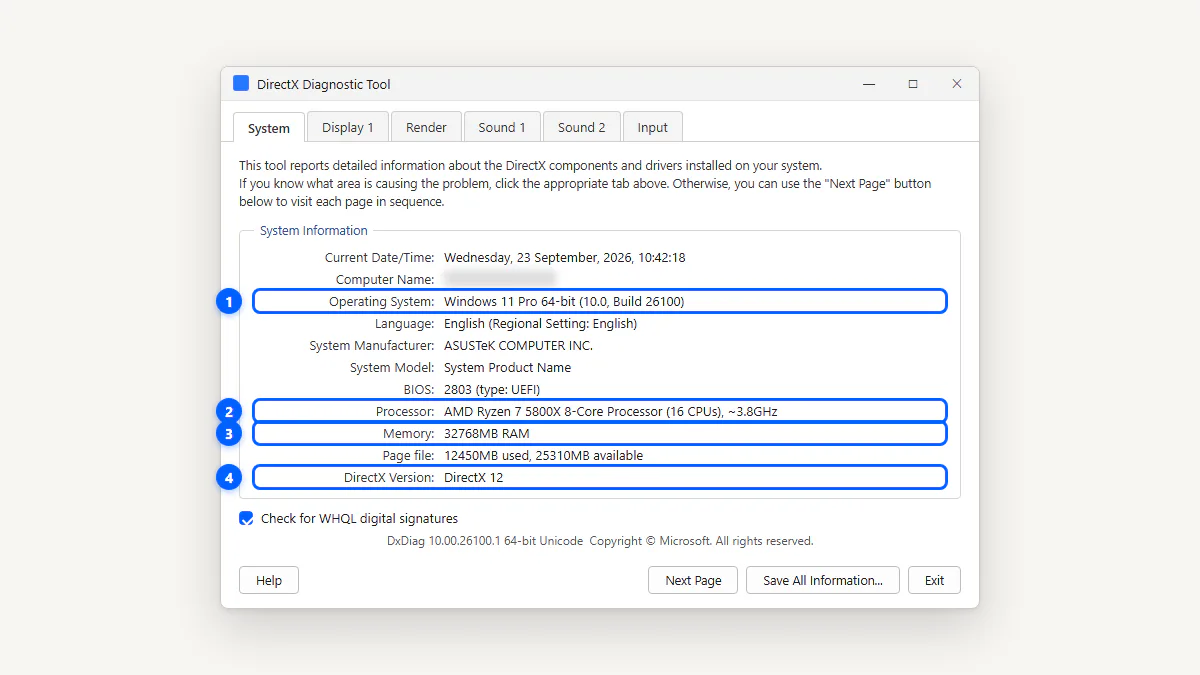
The System tab is the first thing you see. It lists your operating system, processor model and speed, installed memory, page file usage, DirectX version, and BIOS version. Support agents use this to confirm your Windows build and whether you have enough RAM for a game or application.
Display Tab: GPU, VRAM, Driver
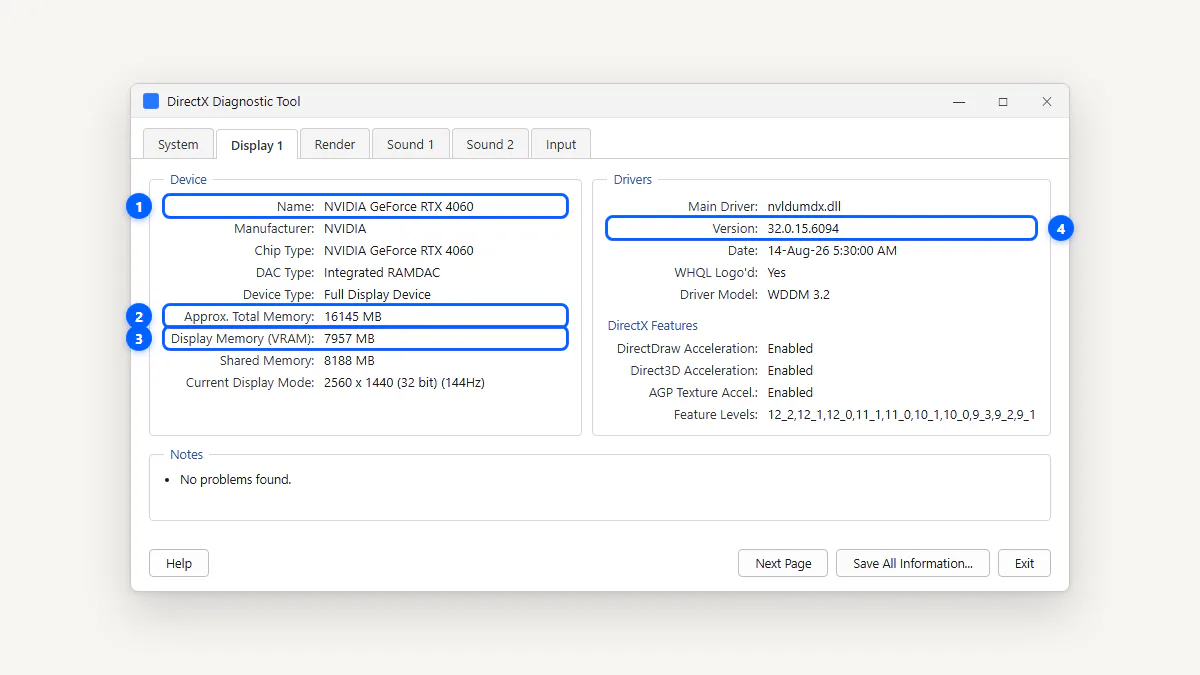
The Display tab is where you'll spend most of your time. It shows your GPU's name, manufacturer, Display Memory (total VRAM including shared), Dedicated Memory (actual GPU VRAM), driver version, driver date, and the Feature Levels your GPU supports. The Feature Levels line tells you the maximum DirectX version your GPU can actually run — more on that in the DirectX version guide.
Render Tab (Laptops With Two GPUs)
If your laptop has both an integrated GPU (like Intel Iris Xe) and a discrete GPU (like an NVIDIA GeForce RTX), DxDiag shows the integrated card on the Display tab and the discrete card on the Render tab. This is normal — it doesn't mean your dedicated GPU is broken. For more detail, see how to read your PC specs in DxDiag.
Sound and Input Tabs
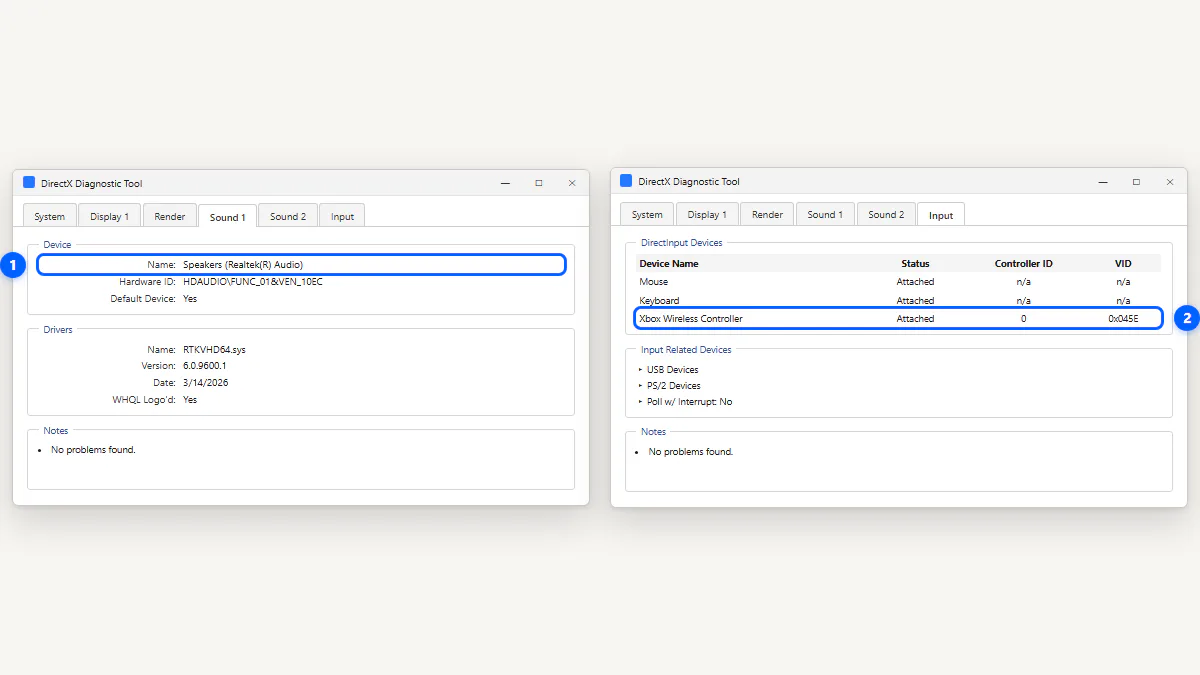
The Sound tab lists each audio output device with its driver version. The Input tab shows connected keyboards, mice, and game controllers. These tabs are mostly useful when debugging audio issues or when a controller isn't being detected by a game.
"No Problems Found" — Does That Mean Your PC Is Fine?
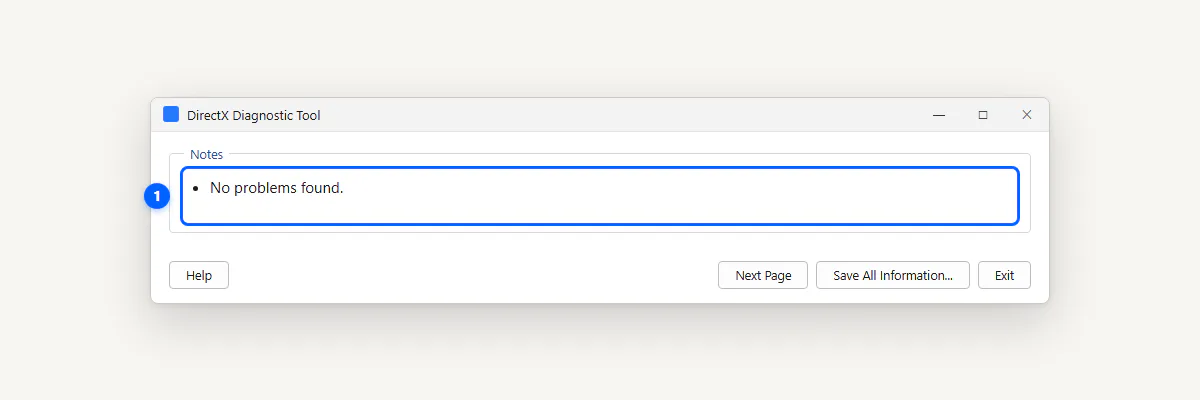
At the bottom of each DxDiag tab there's a Notes box. If it reads "No problems found," that means the DirectX components and drivers for that device passed a basic signature and status check. It does not mean your hardware is healthy overall.
DxDiag doesn't check for overheating, failing SSDs, RAM errors, or malware. If your PC is crashing despite a clean DxDiag report, you'll need other tools: Windows Memory Diagnostic for RAM, CrystalDiskInfo for drives, and HWMonitor for temperatures. For a deeper look at what the Notes box actually tests, see what the Notes box really means.
Save and Share a DxDiag Report for Support
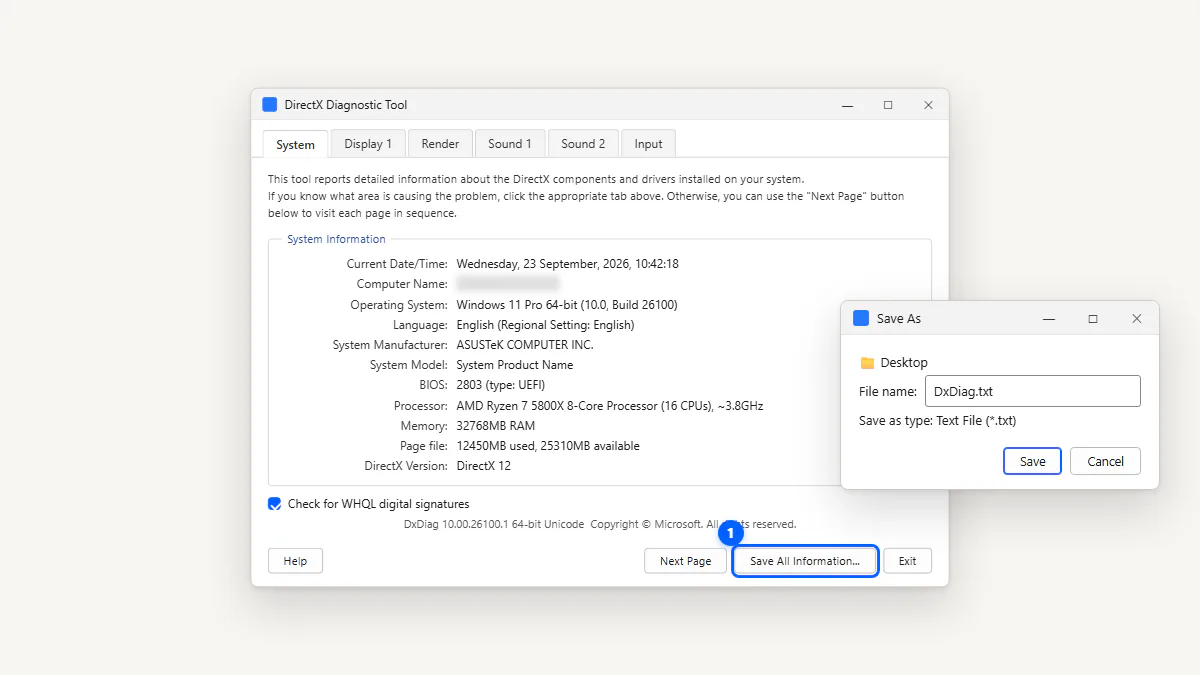
Click Save All Information… at the bottom of DxDiag, pick
a save location (Desktop is easiest), and you'll get a DxDiag.txt file. This plain-text file contains everything from every tab — it's what
support teams want when they ask for "your DxDiag."
For a command-line shortcut, run dxdiag /t %USERPROFILE%\Desktop\DxDiag.txt — it saves the file silently without opening the GUI. The report includes
your PC name and Windows username but no passwords or personal files. If
you're posting it publicly, blur the Machine name line. For the full walkthrough,
see how to save a DxDiag report.
Which DirectX Version Does Your PC Have?
Open DxDiag and check the DirectX Version line on the System tab. If you're on Windows 10 or 11, it will say DirectX 12 — every copy of Windows 10/11 includes it.
But here's the part everyone misses: the DirectX Version field only tells you what the operating system supports. What your games can actually use depends on your GPU's Feature Levels, listed on the Display tab. A GPU with Feature Level 11_0 won't run DX12 titles, even though Windows reports "DirectX 12."
For a full breakdown of Feature Levels, version history, and how to update, see how to check your DirectX version.
DxDiag.exe: Where It Lives, Why You Never Download It
The DxDiag executable lives at C:\Windows\System32\dxdiag.exe. It's about 300 KB, signed by Microsoft Windows, and protected by
Windows Resource Protection — meaning Windows won't let you
accidentally delete it.
If you've Googled "dxdiag download" or "dxdiag exe download," stop. There is no official standalone download. Any site offering one is either redistributing a system file unnecessarily or, worse, bundling malware. The real dxdiag.exe file is already on your PC.
If DxDiag is missing or won't open, the fix is sfc /scannow or DISM /Online /Cleanup-Image /RestoreHealth — not downloading
it from a third-party site.
Game Crashing? Using the DirectX Diagnostic Tool to Find Out Why
When a game crashes, the DxDiag report is your first stop. Here's the troubleshooting workflow:
- Check the Display tab driver date. If your GPU driver is more than 12 months old, update it from NVIDIA, AMD, or Intel.
- Compare your specs with the game's minimum requirements. The System and Display tabs have everything you need: CPU, RAM, GPU, VRAM, and DirectX Feature Level.
- Check the Notes box. If it shows a driver problem instead of "No problems found," that's your lead.
- Missing DLL errors? If a game says
d3dx9_43.dllorxinput1_3.dllis missing, install the DirectX End-User Runtime. - Need the latest DirectX components? Run Windows Update. For a full guide to what's available, see how to download DirectX safely.
Drop your DxDiag report into the Report Reader above — it'll flag old drivers and check your Feature Level automatically.

DxDiag vs System Information vs Task Manager
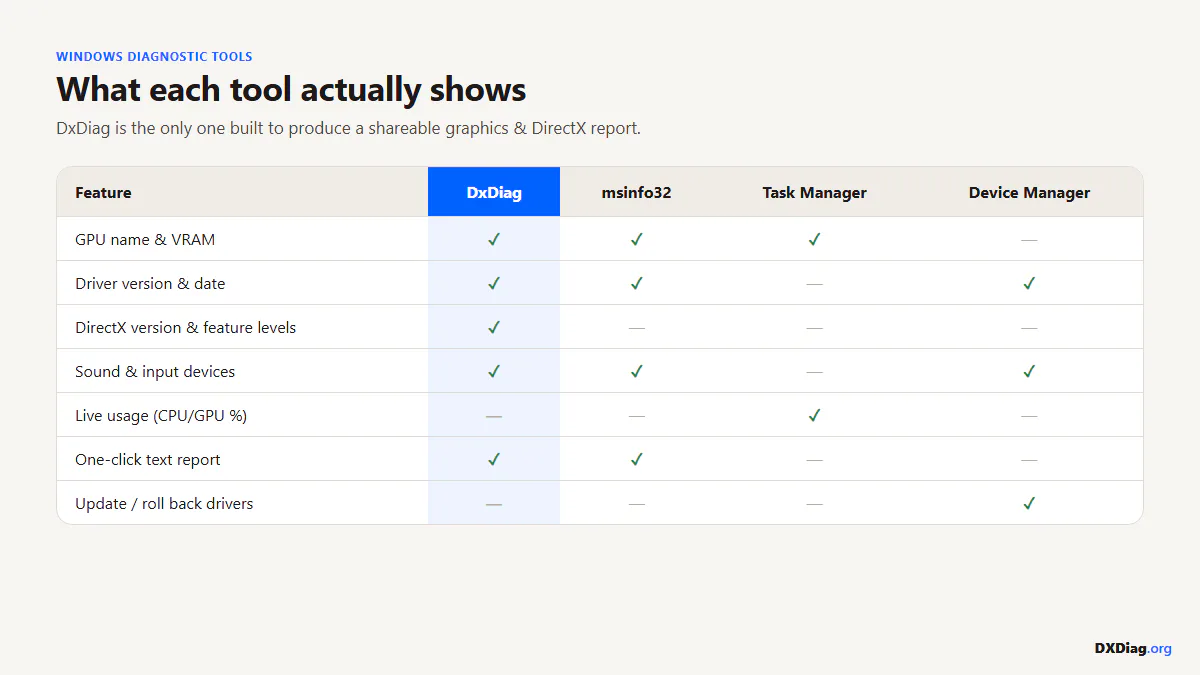
Windows has several built-in tools that show hardware info. Here's how they compare:
| Feature | DxDiag | msinfo32 | Task Manager | Device Manager |
|---|---|---|---|---|
| Best for | DirectX & GPU troubleshooting | Full hardware inventory | Live performance monitoring | Driver management |
| Shows GPU driver? | ✓ Version + date | ✓ Basic | ✓ Version only | ✓ Full details |
| Shows DirectX version? | ✓ Version + Feature Levels | ✓ Version only | ✗ | ✗ |
| Exports a report? | ✓ .txt / .xml | ✓ .nfo / .txt | ✗ | ✗ |
| Shows live CPU/RAM usage? | ✗ | ✗ | ✓ | ✗ |
| How to open | dxdiag | msinfo32 | Ctrl+Shift+Esc | devmgmt.msc |
Quick Answers About DxDiag
-
DxDiag stands for DirectX Diagnostic Tool. It's a Microsoft utility — the executable is
dxdiag.exe— that ships with every version of Windows since Windows 98. It reads your hardware and DirectX component information without changing anything on your system. -
Yes. DxDiag is a signed Microsoft file located in
C:\Windows\System32. It only reads information and makes no changes to your PC. Be careful with sites that offer a "dxdiag download" — the real tool is already installed on your computer and never needs to be downloaded separately. -
Press Windows + R to open the Run dialog, type
dxdiag, and press Enter. Alternatively, click the Start button and type dxdiag in the search bar. The tool opens in about 5–10 seconds as it gathers your hardware data. -
Yes. Click the Display tab to see your GPU's Name, Manufacturer, Display Memory (VRAM), Driver Version, and Driver Date. Laptops with two GPUs will show a second Display tab or a separate Render tab for the discrete graphics card.
-
No — DxDiag only diagnoses, it doesn't fix. To resolve DirectX problems: update your GPU driver from the manufacturer's site, run Windows Update, or install the DirectX End-User Runtime for missing d3dx9 DLLs.
-
The DirectX Version field shows what the operating system supports. What your game can actually use depends on your GPU's Feature Level, shown on the Display tab. A GPU with Feature Level 11_1 can't run DX12 games even though Windows says "DirectX 12."
-
Wherever you choose in the Save dialog. The default is your Desktop or Documents folder as DxDiag.txt. You can also save directly from the command line:
dxdiag /t C:\dxdiag.txtwrites the report toC:\dxdiag.txtautomatically. -
No. dcdiag is a completely different tool that checks Active Directory domain controllers on Windows Server. If you typed
dcdiagorxdiaglooking for the DirectX Diagnostic Tool, the correct command isdxdiag.
Your Next Step
- Need your PC specs? Open DxDiag right
now — press Win + R, type
dxdiag, Enter. - Have a DxDiag report? Drop it in the Report Reader to decode your hardware, check driver age, and get a copyable summary.
- Game won't launch? Check the DirectX download guide or install the End-User Runtime for missing DLLs.
The DxDiag tool is the fastest way to understand what's inside your Windows PC — and this page is the fastest way to understand what DxDiag is telling you.