Check Your PC Specs With DxDiag: What Every Field Means
The DxDiag system and Display tabs pack your entire hardware profile into one window. Here's what every line means — from the processor field to the confusing VRAM numbers.
Open DxDiag. The System tab lists Operating System, Processor, Memory, DirectX Version. The Display tab lists GPU name, Display Memory (VRAM), Driver Version. Important nuance: "Display Memory" equals VRAM plus shared memory, while "Dedicated Memory" equals real VRAM. On laptops with two GPUs, the discrete card appears on the Render tab.
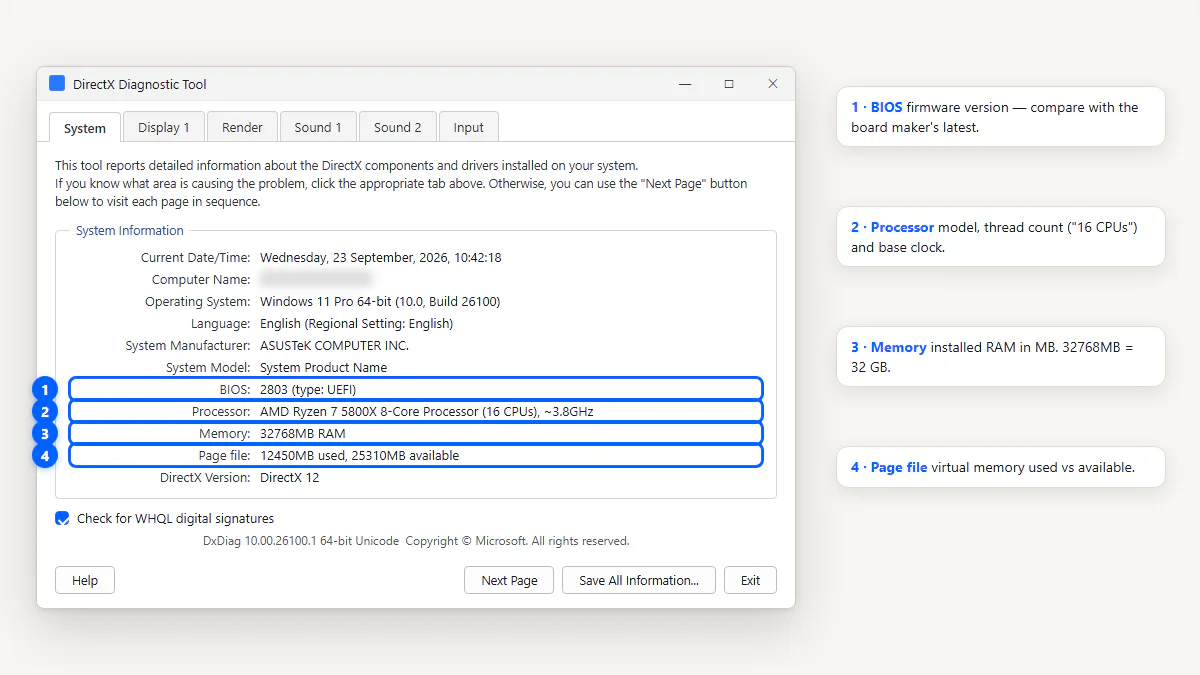
DxDiag System Tab: Every Line Explained
The System tab is the first screen you see when DxDiag opens. Here's what each field means:
| Field | Example | What It Means |
|---|---|---|
| Computer Name | DESKTOP-ABC123 | Your PC's network name. Blur this if sharing publicly. |
| Operating System | Windows 11 Home 64-bit (10.0, Build 26100) | OS edition, architecture, and build number. |
| Language | English | System language and regional settings. |
| System Manufacturer | Dell Inc. | The PC maker. "System manufacturer" on custom builds. |
| System Model | Inspiron 15 5530 | Laptop/desktop model. "System Product Name" on custom. |
| BIOS | 1.12.0, 3/18/2026 | BIOS or UEFI firmware version and date. |
| Processor | 13th Gen Intel Core i7-1360P (12 CPUs), ~2.2GHz | CPU model, core count, and base clock. |
| Memory | 16384MB RAM | Total installed physical memory. |
| Available OS Memory | 15798MB RAM | Usable RAM (installed minus hardware-reserved). |
| Page File | 8632MB used, 10122MB available | Virtual memory usage on disk. |
| DirectX Version | DirectX 12 | The API version the OS supports (not what your GPU supports). |
Display Tab: Your GPU, VRAM and Driver
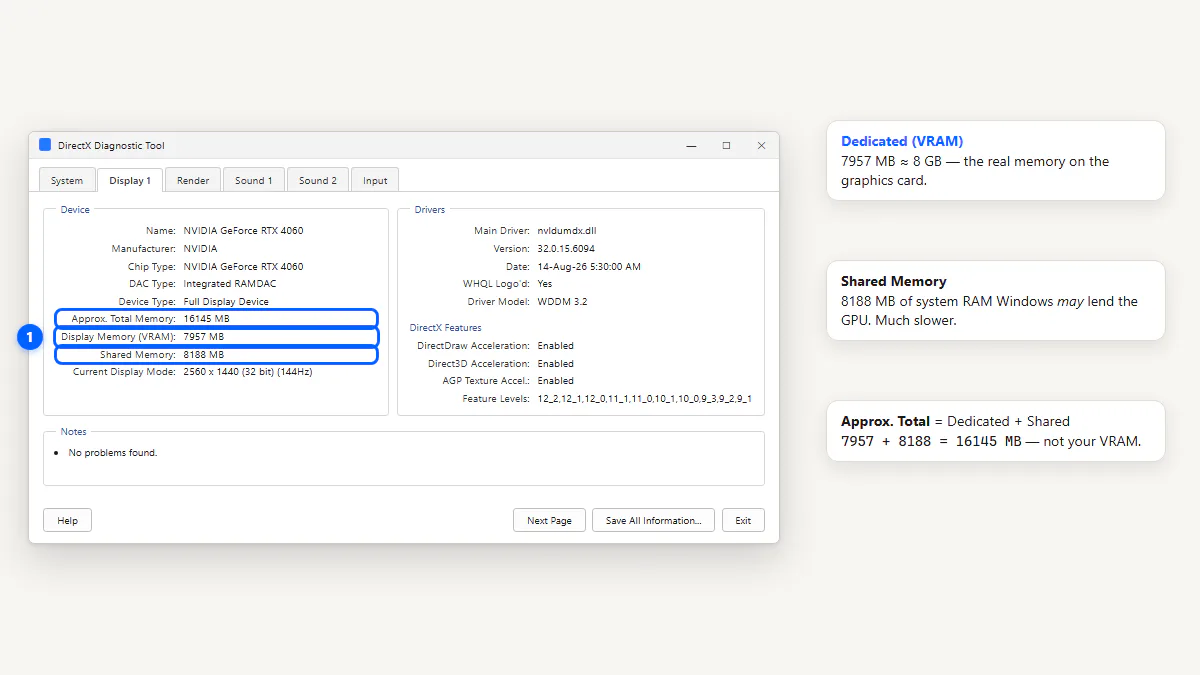
The Display tab is where gamers and support agents spend most of their time. It shows your GPU's full specifications and driver details.
Dedicated vs Display vs Shared Memory
DxDiag's memory fields confuse everyone. Here's the breakdown:
- Dedicated Memory: Your GPU's actual VRAM — the fast memory on the graphics card itself (e.g., 4096 MB for a 4 GB card). This is the number that matters for gaming.
- Shared Memory: System RAM that the GPU can borrow when it needs more memory. It's much slower than dedicated VRAM.
- Display Memory: Dedicated + Shared combined. This number looks impressive but is misleading — it doesn't mean you have 12 GB of fast VRAM.
Driver Version and Date
The Driver Version and Driver Date fields tell you exactly which GPU driver you're running. If your driver is more than 12 months old, it's worth updating from your GPU vendor's website.
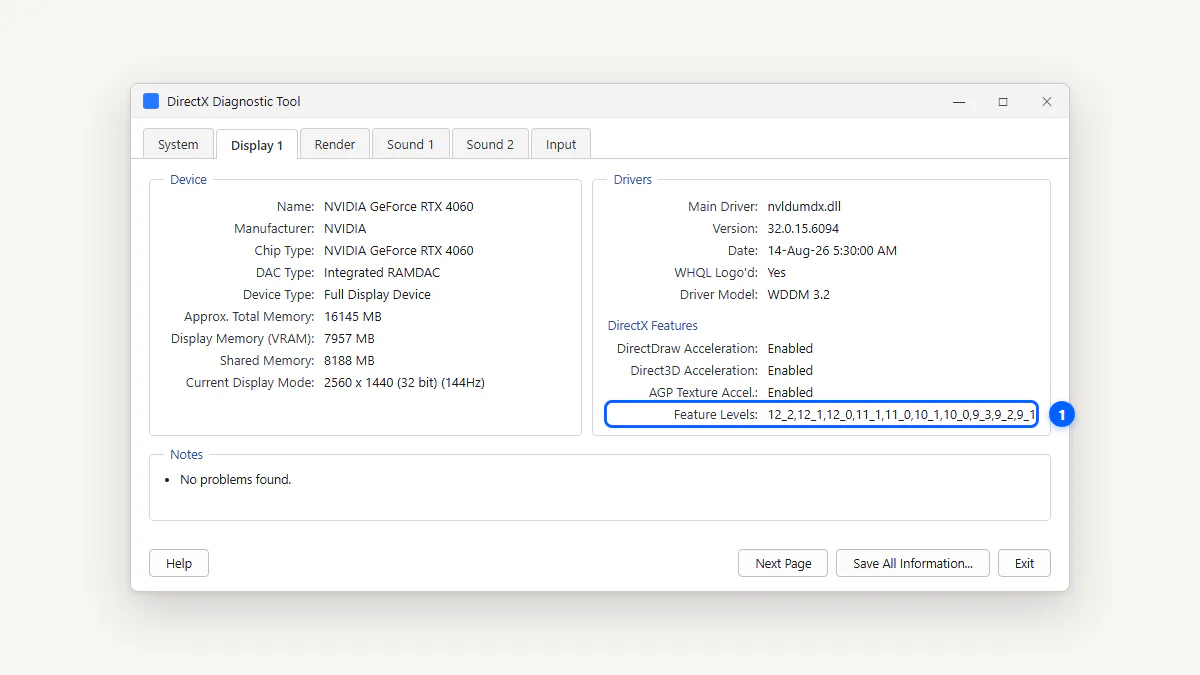
Feature Levels
The Feature Levels line lists the DirectX feature levels your GPU supports, from highest to lowest (e.g., "12_2, 12_1, 12_0, 11_1, 11_0, …"). The highest level determines what games can use. Feature Level 12_2 means full DirectX 12 Ultimate support. For more detail, see the DirectX version field guide.
Two Display Tabs? Integrated + Dedicated GPU
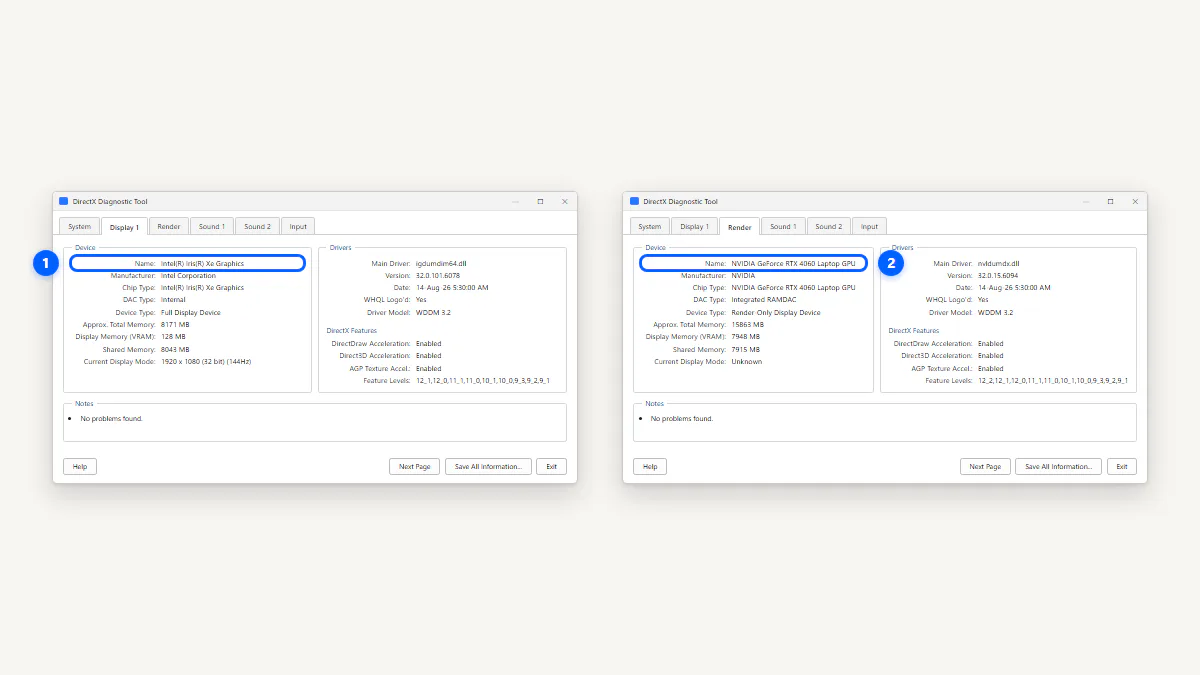
If your laptop has both an integrated GPU (like Intel Iris Xe) and a dedicated GPU (like NVIDIA GeForce RTX), DxDiag shows two Display tabs — or one Display tab for the iGPU and a Render tab for the dGPU. This is normal and doesn't mean anything is wrong.
Render Tab on Gaming Laptops
The Render tab appears on laptops with hybrid graphics (an integrated GPU plus a discrete GPU). It shows the discrete GPU's specs — Card name, VRAM, Driver Version, Feature Levels — separately from the Display tab's integrated GPU.
If you're checking whether your laptop's dedicated GPU is being detected, the Render tab is where you'll find it.
Sound and Input Tabs in 60 Seconds
The Sound tab lists each audio output device — speakers, headphones, HDMI audio — with its driver version and whether it's set as the default playback device. The Input tab lists connected keyboards, mice, game controllers, and touch devices.
These tabs are most useful when debugging audio problems (crackling, no sound, wrong output) or when a game controller isn't being detected.
Does My PC Meet a Game's Requirements?
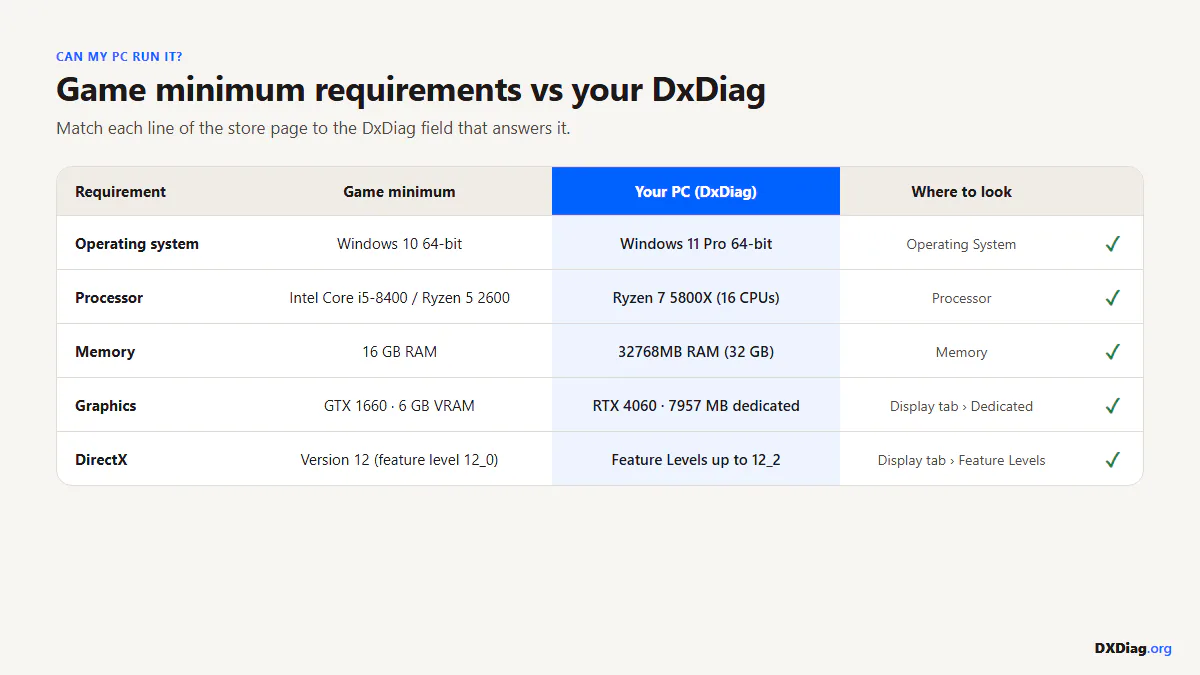
Here's how to compare your DxDiag system info with a game's minimum specs:
- Open DxDiag and note your Processor (System tab), Memory (System tab), GPU name and Dedicated Memory (Display tab), and Feature Levels (Display tab).
- Find the game's minimum or recommended specs on its store page.
- Compare each value. Pay special attention to VRAM and Feature Level — these are the most common bottlenecks.
- Or: save your DxDiag report and paste it into the Report Reader on the homepage for an instant summary.
DxDiag Shows the Wrong RAM or GPU? Here's Why
A few common surprises:
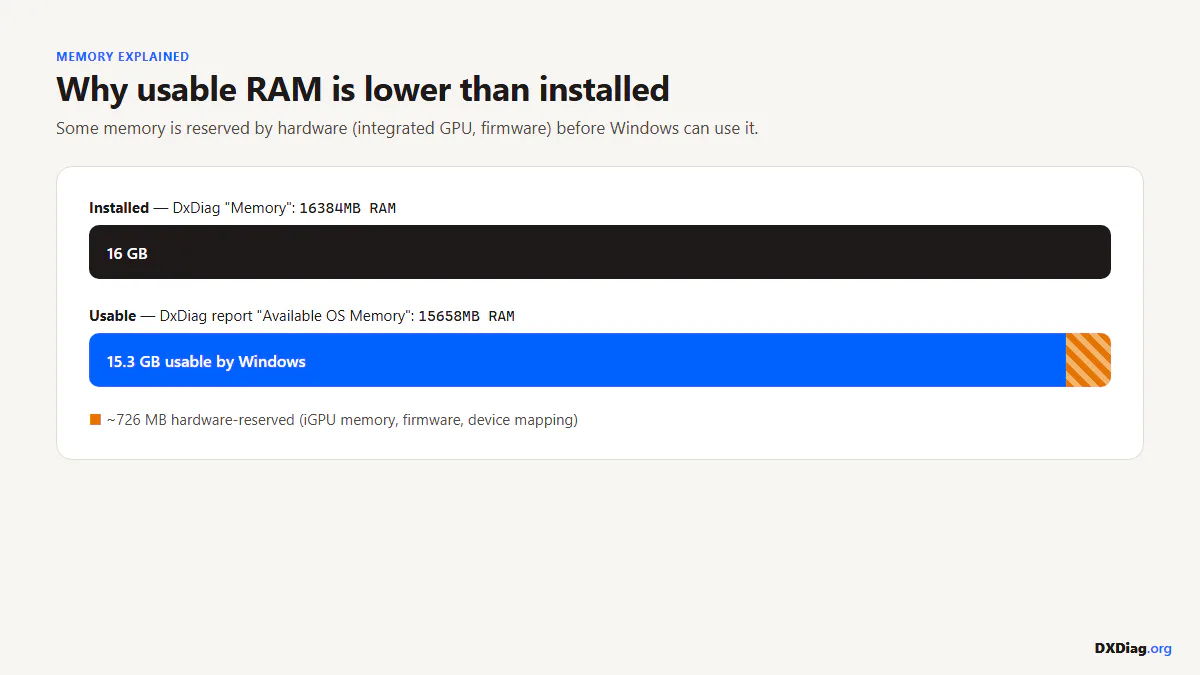
- "Available OS Memory" is lower than installed RAM: Windows reserves some RAM for hardware (iGPU shared memory, BIOS, etc.). If you installed 16 GB, seeing ~15.8 GB available is normal.
- Display Memory shows way more than your card's VRAM: That's because Display Memory = Dedicated + Shared. Your real VRAM is the "Dedicated Memory" line.
- Only the integrated GPU shows: On laptops, the discrete GPU appears on the Render tab, not the Display tab. If even the Render tab is missing, the dGPU driver may not be installed.
- VRAM shows 4095 MB: The 32-bit version of DxDiag caps VRAM at ~4 GB. Run the 64-bit version (the default on modern Windows) to see the full amount.
Frequently Asked Questions
-
Press Windows + R, type
dxdiag, press Enter. The tool opens in 5–10 seconds and shows your full PC specs across the System, Display, Sound, and Input tabs. No download or installation is needed. -
Click the Display tab. The "Card name" field shows your GPU model (e.g., "NVIDIA GeForce RTX 4060"). Laptops with two GPUs may show the discrete card on a separate Render tab.
-
DxDiag shows available OS memory, which is your installed RAM minus what's reserved by hardware (typically the iGPU's shared memory and BIOS). If you have 16 GB installed, you might see about 15.8 GB available — that's normal.
-
Display Memory is the total of Dedicated Memory (actual GPU VRAM) plus Shared Memory (system RAM the GPU can borrow). For a gaming GPU, focus on Dedicated Memory — that's your real VRAM.
-
No. DxDiag shows the CPU model and clock speed but not temperature. For temperature monitoring, use a tool like HWMonitor, Core Temp, or HWiNFO.
-
Partially. The System Model and BIOS fields give you manufacturer and model info, but not the motherboard's exact model number on desktops. For full motherboard details, use
msinfo32and look for "BaseBoard" entries. -
Click the Display tab and find Dedicated Memory — that's your GPU's actual VRAM. The "Display Memory" field includes shared system memory, which inflates the number.
What's Next
You know what each field means — now put it to use:
- Export this as a report for tech support
- DirectX version field — understand Feature Levels
- DxDiag tool — back to the full guide