How to Run DxDiag on Windows 11 and 10 (Every Method)
Six ways to launch the DirectX Diagnostic Tool — from the 3-second Run box to silent command-line export — plus fixes when the dxdiag run command doesn't work.
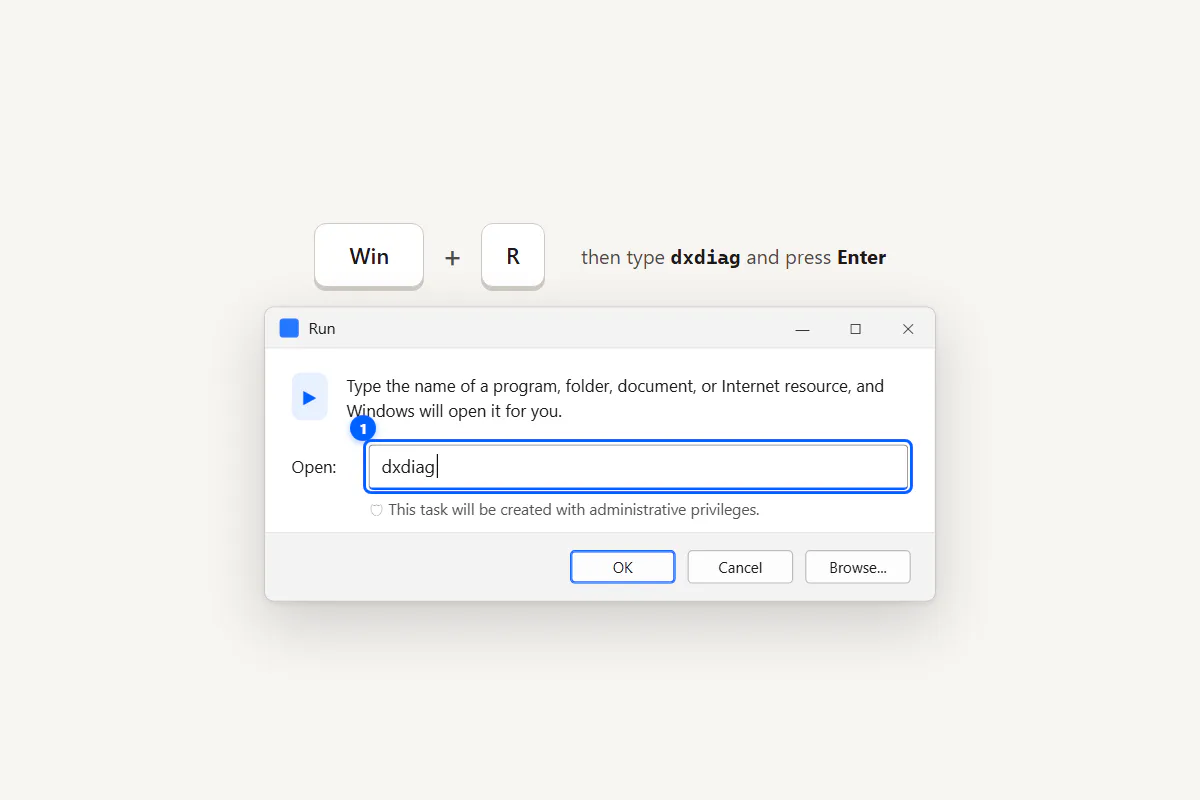
To run DxDiag, press Windows + R, type dxdiag, press Enter. If it's your first time, a prompt will ask whether to check digitally signed drivers — click Yes. The tool loads in 5–10 seconds, showing a green progress bar while it scans. On 64-bit Windows, this launches the 64-bit version automatically. For a silent export, run dxdiag /t C:\dxdiag.txt from Command Prompt or PowerShell.
Fastest DxDiag Run Method: Win + R
This is the method every tech support agent will tell you. The dxdiag run command takes exactly four steps:
- Press Windows + R on your keyboard. The Run dialog opens.
- Type
dxdiagin the text field. - Press Enter or click OK.
- If prompted, click Yes to check for digitally signed drivers.
DxDiag opens in about 5–10 seconds. You'll see a green progress bar at the bottom while it queries your hardware.
5 More Ways to Open DxDiag
From Start Search
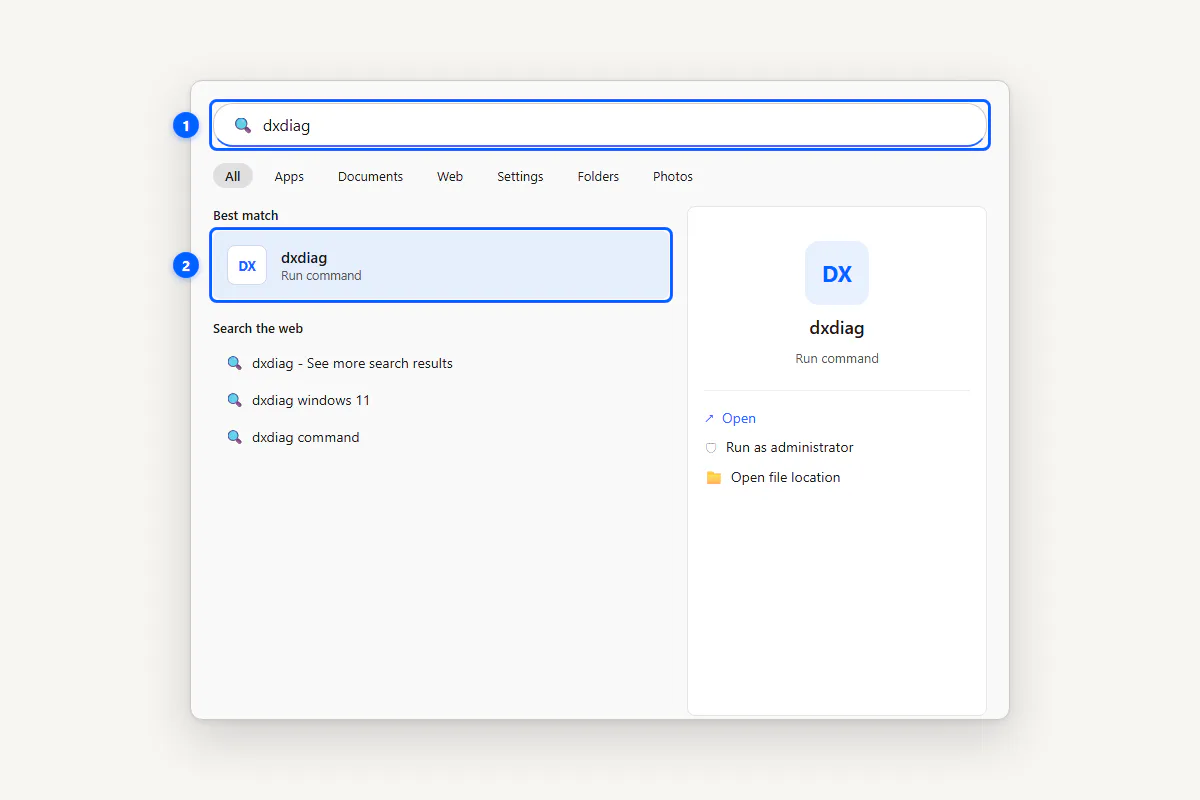
Click the Start button (or press the Windows key), type dxdiag, and click the "dxdiag Run command" result. This works on both Windows 10 and 11.
From Command Prompt (the dxdiag command)
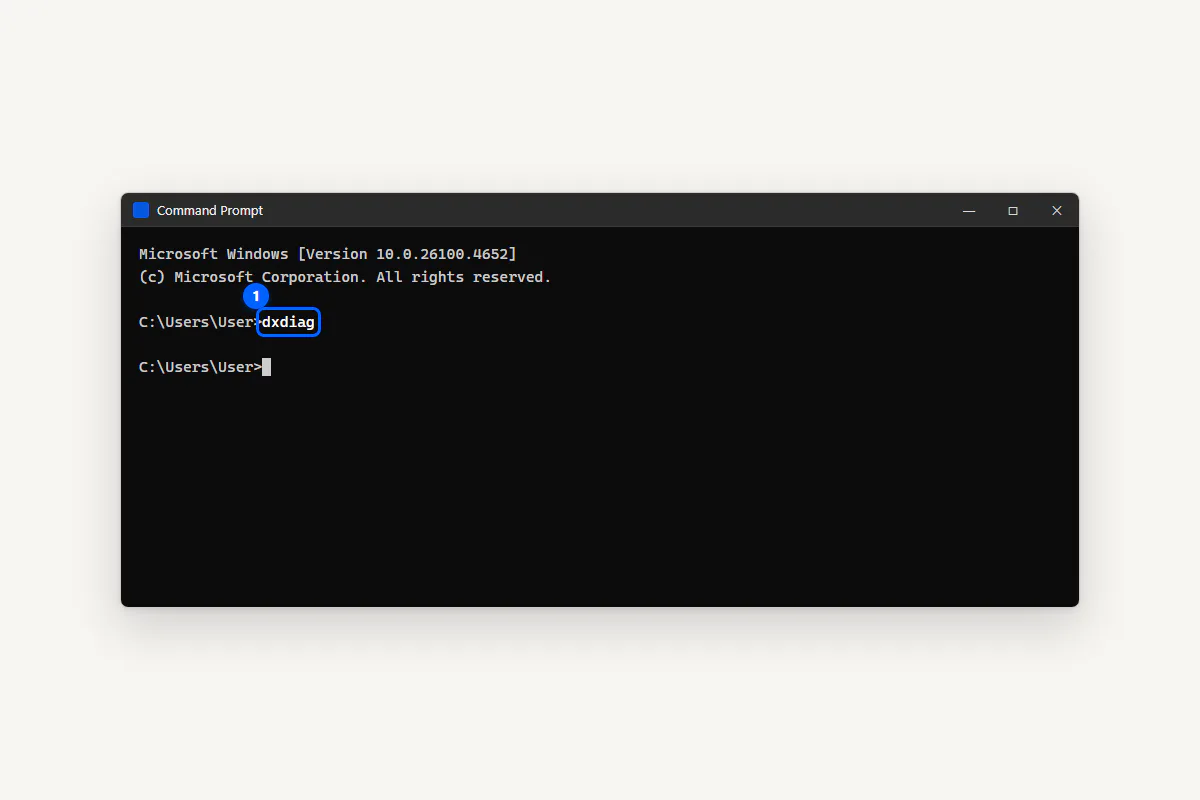
Open Command Prompt and type dxdiag, then press Enter. The tool launches just like it does from the Run box. To save a report without opening the GUI, use dxdiag /t filename.txt.
From PowerShell
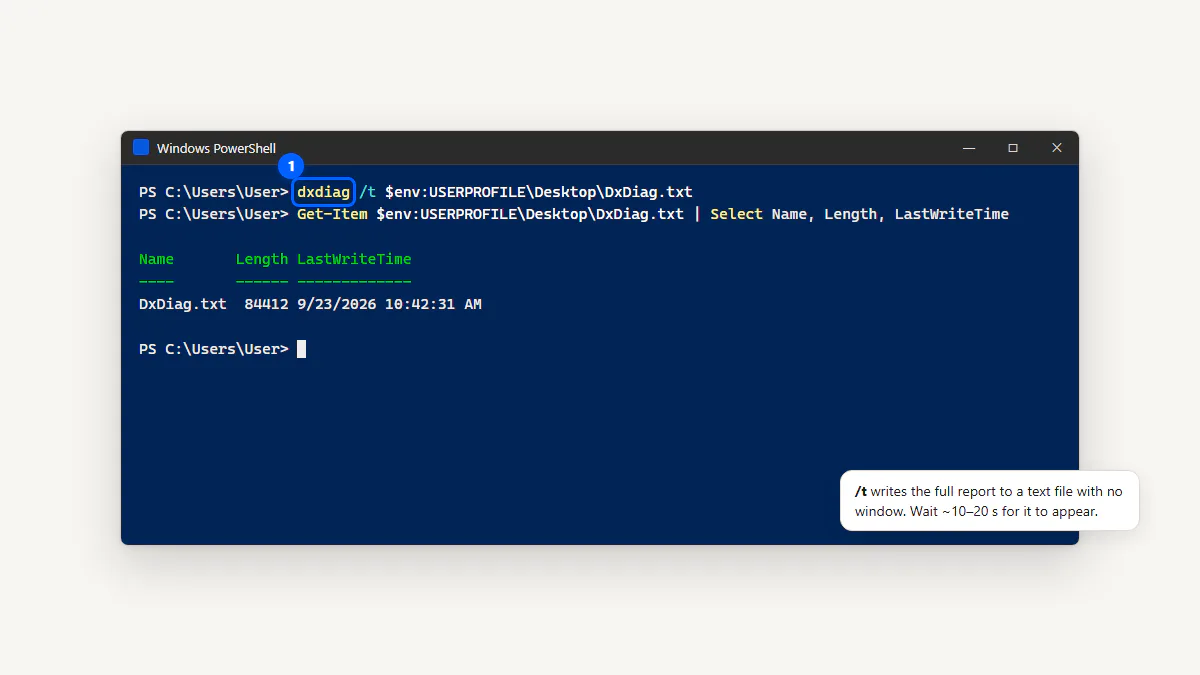
Open PowerShell or Windows Terminal and type dxdiag. For a silent text report: dxdiag /t "$env:USERPROFILE\Desktop\DxDiag.txt".
From File Explorer (System32)
Navigate to C:\Windows\System32, scroll to dxdiag.exe, and double-click it. This is rarely needed, but it proves the file exists if someone claims it's missing.
With a Desktop Shortcut
Right-click the desktop → New → Shortcut → type dxdiag as the location → name it "DxDiag" → Done. You can then assign a custom hotkey through the shortcut's properties.
Handy DxDiag Command Switches
| Switch | What It Does | Example |
|---|---|---|
/t file.txt | Save report as text, then exit | dxdiag /t C:\dxdiag.txt |
/x file.xml | Save report as XML, then exit | dxdiag /x C:\dxdiag.xml |
/whql:off | Skip the WHQL signature check | dxdiag /whql:off |
/64bit | Force 64-bit mode (legacy) | dxdiag /64bit |
/dontskip | Don't skip any tests | dxdiag /dontskip |
Run Command Not Working? Fixes That Work
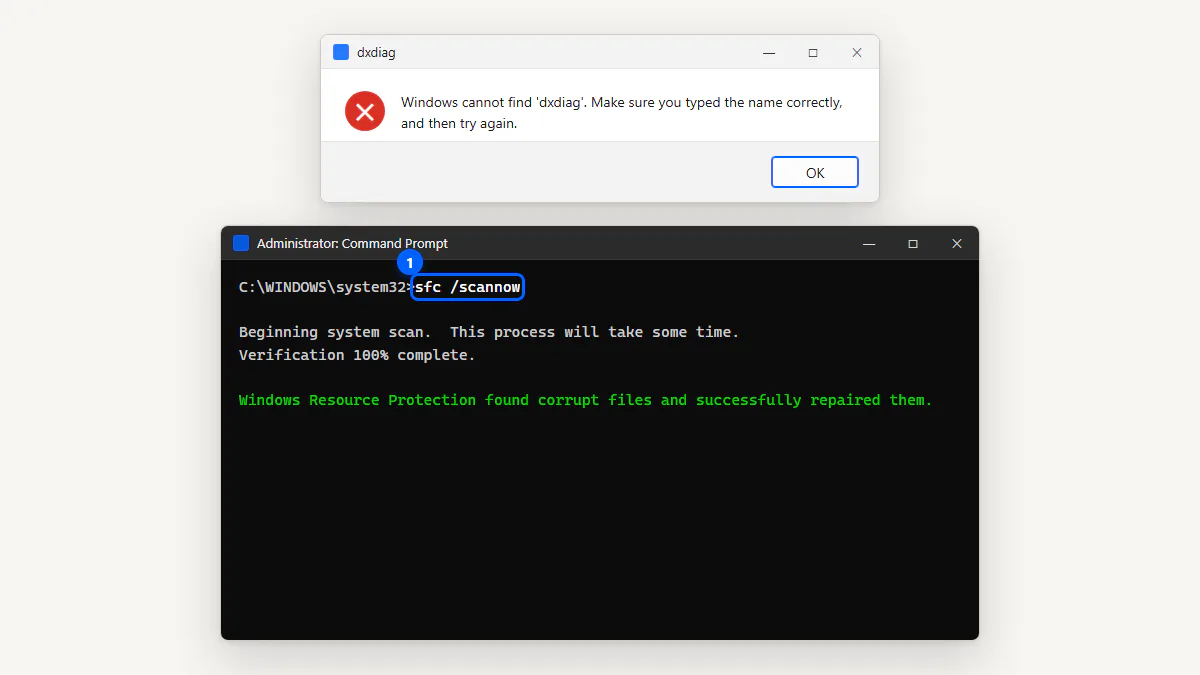
If you get "Windows cannot find 'dxdiag'" or the command is not recognized, try these fixes in order:
- Run SFC: Open an elevated Command Prompt and run
sfc /scannow. This checks and repairs protected system files including dxdiag.exe. - Run DISM: If SFC reports issues it can't fix, follow up with
DISM /Online /Cleanup-Image /RestoreHealth. - Check your PATH: Make sure
C:\Windows\System32is in your system PATH environment variable. - Check Group Policy: Some corporate environments disable the Run dialog. Ask your IT admin.
- Try a new user profile: If the above fail, create a new local user account and test there.
What Happens on First Launch
The first time you run DxDiag, Windows asks: "Do you want to check if your drivers are digitally signed?" Click Yes — this enables WHQL (Windows Hardware Quality Labs) signature checking, which helps identify unsigned or potentially problematic drivers.
After that, you'll see a green progress bar sweep across the bottom of the window as DxDiag scans each component. This takes 5–10 seconds on most systems. Once it finishes, all tabs are populated and ready to read.
Run DxDiag on Windows 7 and 8.1
The same Win + R → dxdiag → Enter method works on every Windows version back to XP. The interface looks slightly different, but the tabs and fields are the same. On Windows 7, you'll see the old Aero-glass window frame; on 8.1, it matches the flat Metro style.
On 32-bit Windows 7, DxDiag shows a "Run 64-bit DxDiag" button if you're on a 64-bit OS. On Windows 10 and 11, this is handled automatically.
Can You Run DxDiag on a Mac or Linux?
No. DxDiag is a Windows-only utility that depends on DirectX, which doesn't exist on macOS or Linux. Here are the alternatives:
- macOS: Apple menu → About This Mac → More Info (or System Report on older versions). This shows your CPU, RAM, GPU, and macOS version.
- Linux: Use
lspci | grep VGAfor GPU info,glxinfo | grep OpenGLfor graphics details, andlscpuorcat /proc/meminfofor CPU and RAM.

Frequently Asked Questions
-
There's no dedicated shortcut, but Windows + R followed by typing
dxdiagand pressing Enter is the fastest method — it takes about 3 seconds. You can also create a desktop shortcut and assign a custom hotkey to it through its properties. -
If you get "Windows cannot find dxdiag," the System32 folder may be missing from your PATH, or the file is corrupted. Run
sfc /scannowin an elevated Command Prompt to repair it. If that doesn't work, follow up withDISM /Online /Cleanup-Image /RestoreHealth. -
No. DxDiag runs under standard user privileges. It only reads system information and makes no changes. You don't need to right-click "Run as administrator" unless a specific Group Policy restriction has been applied.
-
Usually 5–10 seconds. You'll see a green progress bar at the bottom while it scans DirectX components, queries your GPU driver, and enumerates audio and input devices. Older systems or systems with many devices may take slightly longer.
-
Yes. Use
dxdiag /t \\server\share\dxdiag.txtin a remote PowerShell session or through a remote management tool. The/tswitch saves the report silently and exits, so it works well in scripts and remote shells. -
On 64-bit Windows, typing
dxdiagalready launches the 64-bit version. If you specifically need the 32-bit version (rare), runC:\Windows\SysWOW64\dxdiag.exe. The 64-bit DxDiag button inside the old 32-bit interface is no longer needed on modern Windows.
Now Read What It Shows
You've opened DxDiag — now what do all those fields mean? Head to the system information guide to learn what every tab, field, and number is telling you. Or jump straight to the homepage Report Reader to decode your saved report.
- What DxDiag shows — full homepage guide
- Where dxdiag.exe is located
- Save the output as a report