Where to Find DxDiag.exe (and Why You Shouldn't Download It)
The dxdiag exe file is already on your PC. Here's exactly where it lives, how to verify it's genuine, what to do if it's missing, and why "dxdiag download" sites are a trap.
DxDiag.exe is at C:\Windows\System32\dxdiag.exe and is roughly 300 KB. It's digitally signed by Microsoft Windows and installed with every copy of Windows. No official standalone download exists. If dxdiag.exe is missing or won't open, repair it with sfc /scannow or DISM /Online /Cleanup-Image /RestoreHealth — don't download it from a third-party site.
DxDiag.exe File Location on Windows 11/10
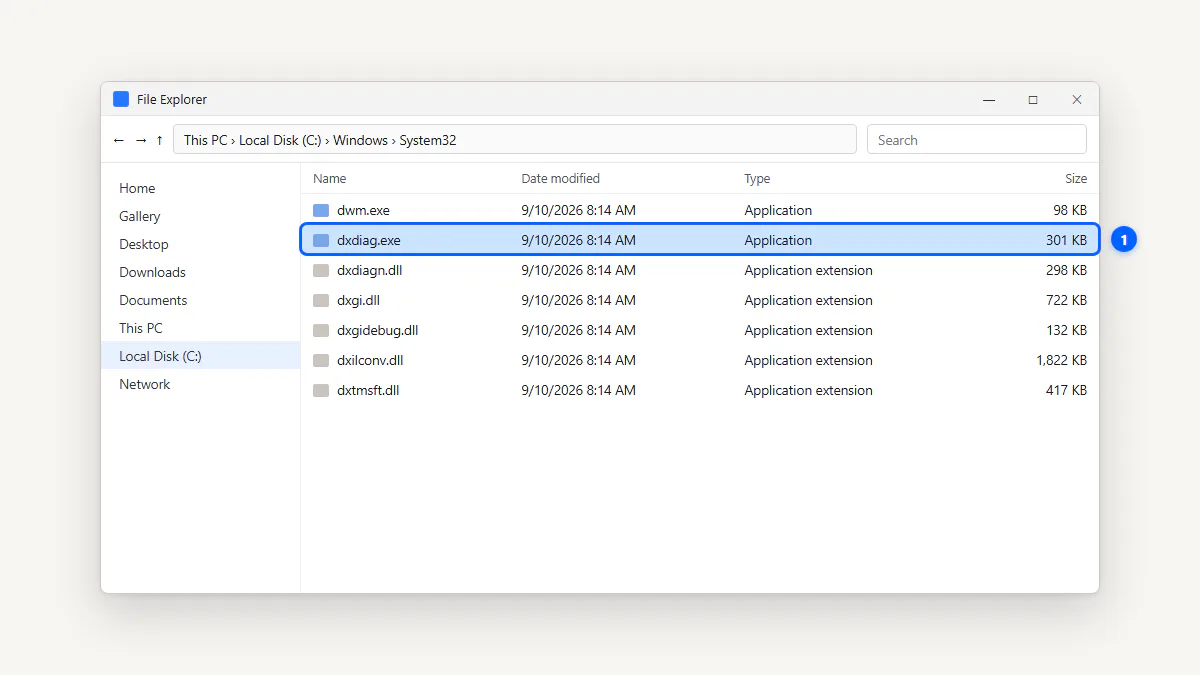
On every copy of Windows, the dxdiag exe file sits in the System32 folder:
C:\Windows\System32\dxdiag.exeOn 64-bit Windows (which is almost every modern PC), there's also a 32-bit copy at C:\Windows\SysWOW64\dxdiag.exe. The System32 version is the 64-bit one, despite the confusing folder name. Always use the System32 copy unless you specifically need to diagnose 32-bit DirectX issues.
Is There an Official DxDiag Download?
No. Microsoft does not offer a standalone dxdiag.exe download. The file is part of Windows itself and gets updated through Windows Update, not through a separate installer.
If you've searched "dxdiag download" or "dxdiag exe download," be very careful with the results. Sites offering the file are either:
- Unnecessary: Redistributing a system file that's already on your PC.
- Dangerous: Bundling malware or adware with the download.
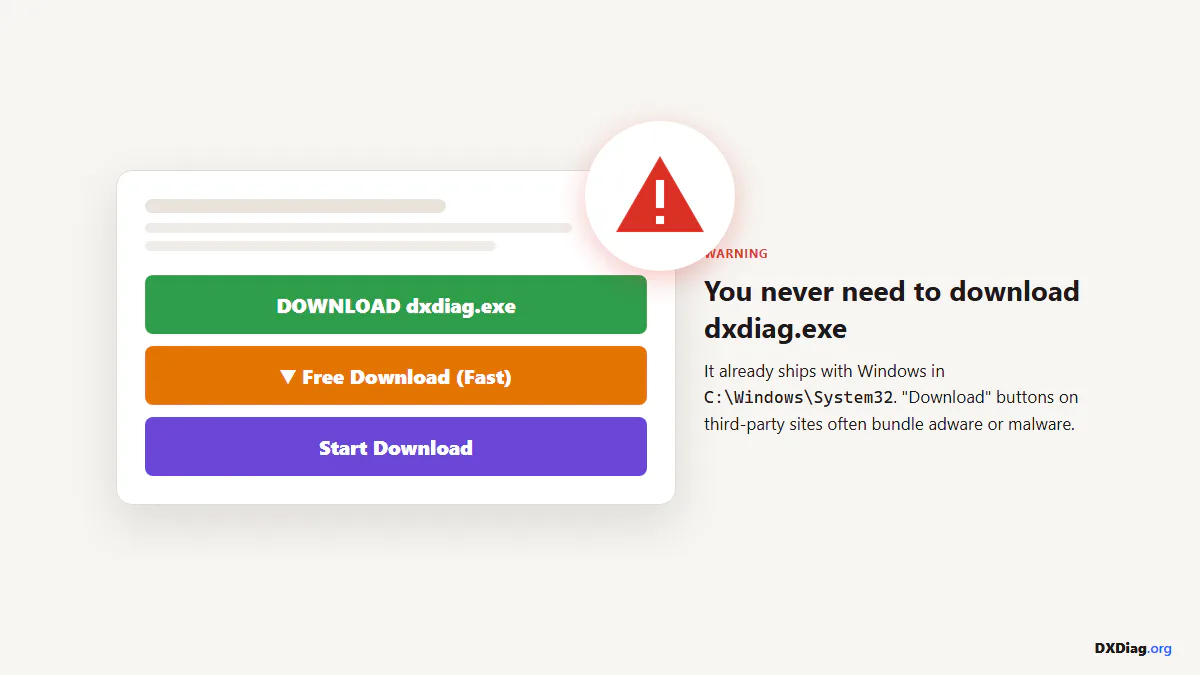
The legitimate file is already at C:\Windows\System32\dxdiag.exe. If it's not there, repair Windows — don't download a replacement.
How to Check Your dxdiag.exe Is Genuine
If you want to verify that your copy of dxdiag.exe is the real Microsoft file:
- Navigate to
C:\Windows\System32and finddxdiag.exe. - Right-click → Properties → Digital Signatures tab.
- The signer should say "Microsoft Windows."
- Check the file location — it must be in System32, not in Downloads, Temp, or any other folder.
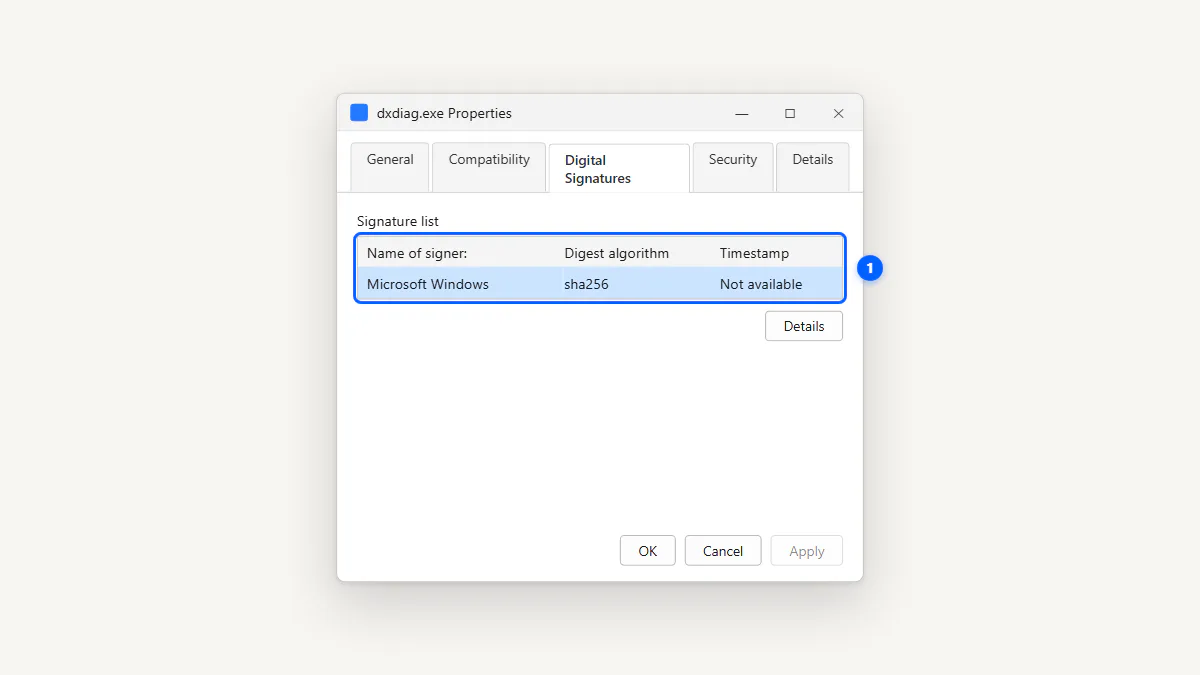
You can also check Task Manager: when DxDiag is running, find the process, right-click → Open file location. If it points anywhere other than System32, that's a red flag.
DxDiag.exe Missing or Won't Open? 5 Fixes
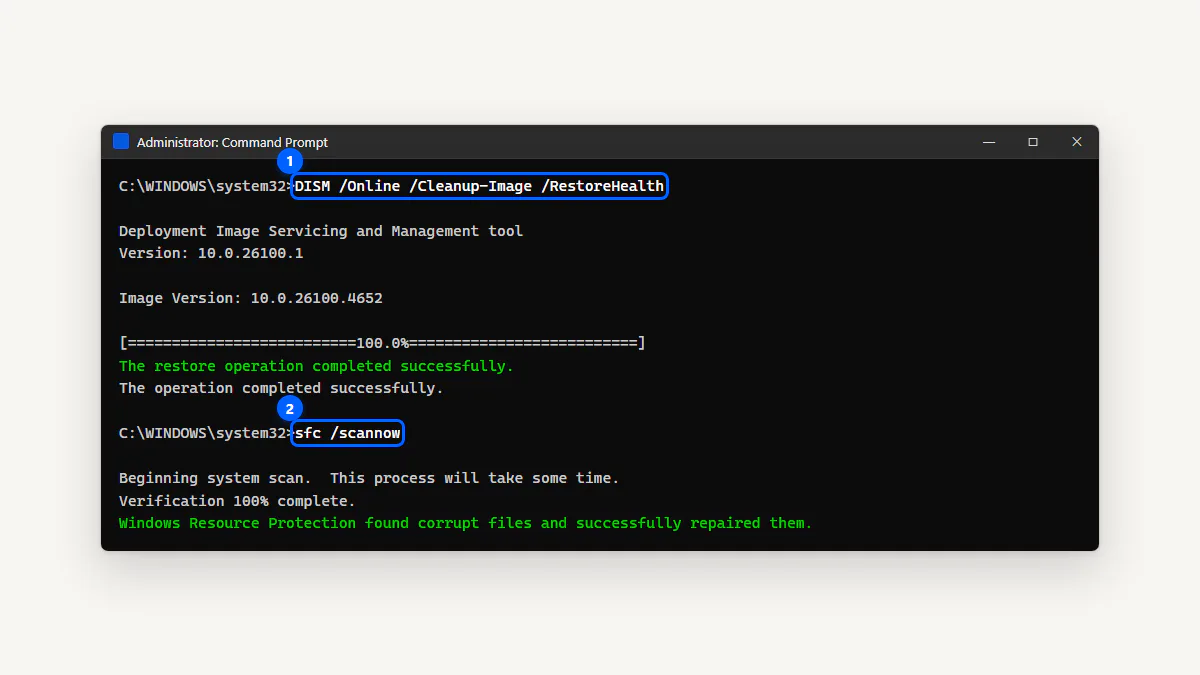
- Run SFC: Open an elevated Command Prompt and run
sfc /scannow. This scans all protected system files and replaces corrupted ones, including dxdiag.exe. - Run DISM: If SFC can't fix the issue, run
DISM /Online /Cleanup-Image /RestoreHealth. This downloads fresh copies of system files from Windows Update. - Check Windows Update: Go to Settings → Windows Update and install all available updates. System components are updated through Windows Update.
- Check Group Policy: In corporate environments, an administrator may have disabled access to system utilities. Ask your IT team.
- Try a new user profile: Create a new local user account and try running dxdiag from there. If it works, your original user profile has a corruption issue.
Is dxdiag.exe a Virus?
The genuine dxdiag.exe in System32 is not a virus — it's a signed Microsoft file. However, malware can disguise itself with the same filename. Red flags to watch for:
- The file is located outside of
C:\Windows\System32(e.g., in Downloads, AppData, or a Temp folder). - It's not digitally signed or signed by a publisher other than Microsoft.
- It uses consistently high CPU for more than 30 seconds.
- Your antivirus flags it.
If you suspect a fake, run a full scan with Windows Security (or your antivirus), then repair the real file with sfc /scannow.
DxDiag.exe vs DirectX Itself
People sometimes confuse dxdiag.exe (the diagnostic viewer) with DirectX (the runtime). They're completely different things:
- dxdiag.exe is a small utility (≈300 KB) that reads information about your DirectX installation and hardware. It changes nothing.
- DirectX is a large collection of APIs (Direct3D, DirectSound, DirectInput, etc.) that games and multimedia apps use to talk to your hardware. It ships with Windows and updates through Windows Update.
If you need to update or install DirectX components, see the official DirectX downloads guide. If you just need to check what you have, dxdiag.exe is the tool for that.
Frequently Asked Questions
-
dxdiag.exe is the DirectX Diagnostic Tool executable. It's a Microsoft system file that reads your hardware, DirectX components, and driver information, then displays it in a tabbed window. It doesn't change anything on your PC.
-
The 64-bit version is at
C:\Windows\System32\dxdiag.exe. On 64-bit Windows, a 32-bit version also exists atC:\Windows\SysWOW64\dxdiag.exe. The System32 copy is the one you should use. -
No. There is no official standalone download from Microsoft. The file ships with every Windows installation. Sites offering a "dxdiag.exe download" are redistributing a system file unnecessarily or bundling malware.
-
Yes — the genuine file is digitally signed by Microsoft Windows and protected by Windows Resource Protection. To verify, right-click the file → Properties → Digital Signatures → it should say "Microsoft Windows."
-
No. The file is protected by Windows Resource Protection (WRP). Even if you take ownership and delete it, Windows will restore it. Deleting system files can cause instability.
-
Brief CPU usage (5–10 seconds) is normal while DxDiag scans your hardware, queries each driver, and enumerates DirectX components. If CPU usage persists beyond 30 seconds, run
sfc /scannowto check for file corruption.
What's Next
Now that you know where dxdiag.exe lives and that it's safe, put it to work:
- 6 ways to open it
- DirectX Diagnostic Tool guide — understand every tab
- Official DirectX downloads