How to Save and Read a DxDiag Report (Step by Step)
Save your DxDiag report in two clicks, learn what's inside the .txt file, and understand what "No problems found" actually checks — plus how to share it safely.
Open DxDiag → wait for the green bar to finish → click Save All Information… → pick Desktop → Save as DxDiag.txt. CMD alternative: dxdiag /t %USERPROFILE%\Desktop\DxDiag.txt. The file is 30–100 KB of plain text. Attach it to your support ticket — don't paste screenshots.
Save a DxDiag Report in 2 Clicks
- Open DxDiag (Win + R → dxdiag → Enter).
- Wait for the green progress bar at the bottom to finish scanning (5–10 seconds).
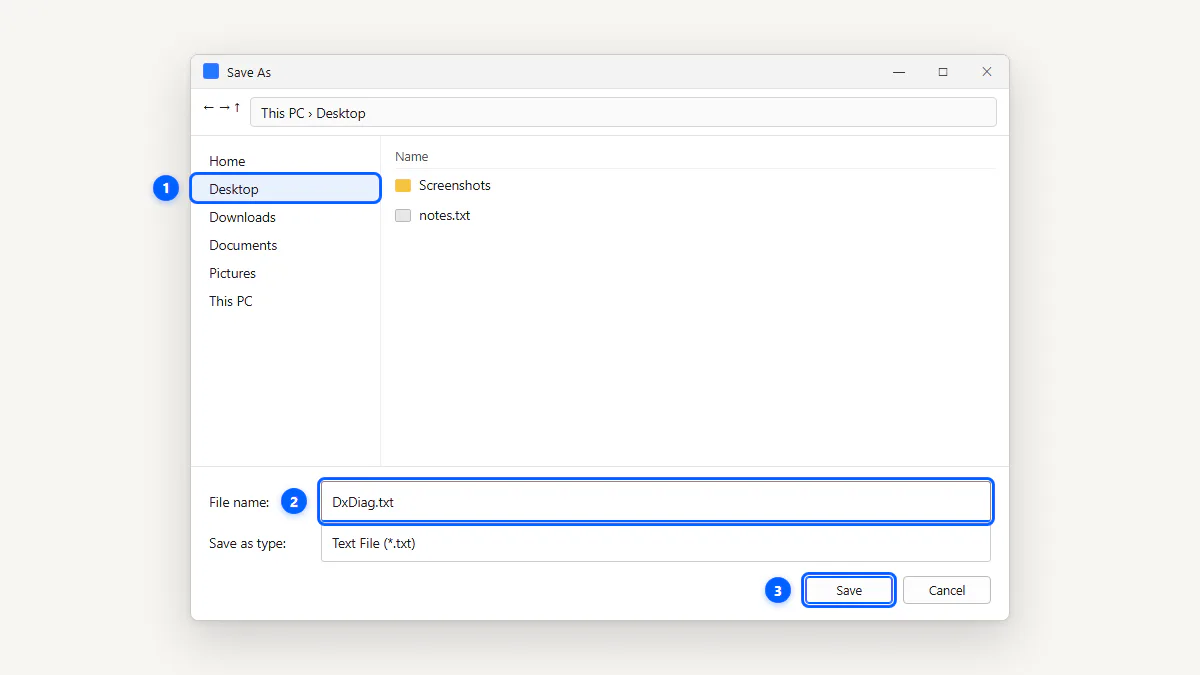
- Click Save All Information… at the bottom of the window.
- Choose a save location (Desktop is easiest) and click Save.
You now have a DxDiag.txt file with your full hardware profile. It's usually 30–100 KB.
Create a DxDiag Report From Command Line
For IT pros and scripting, DxDiag has two silent-export switches:
dxdiag /t %USERPROFILE%\Desktop\DxDiag.txt
dxdiag /x %USERPROFILE%\Desktop\DxDiag.xml
The /t switch saves as plain text; /x saves as XML (easier to parse programmatically). Both run silently — DxDiag opens, scans, writes the file, and closes without user interaction.
What's Inside a DxDiag Report
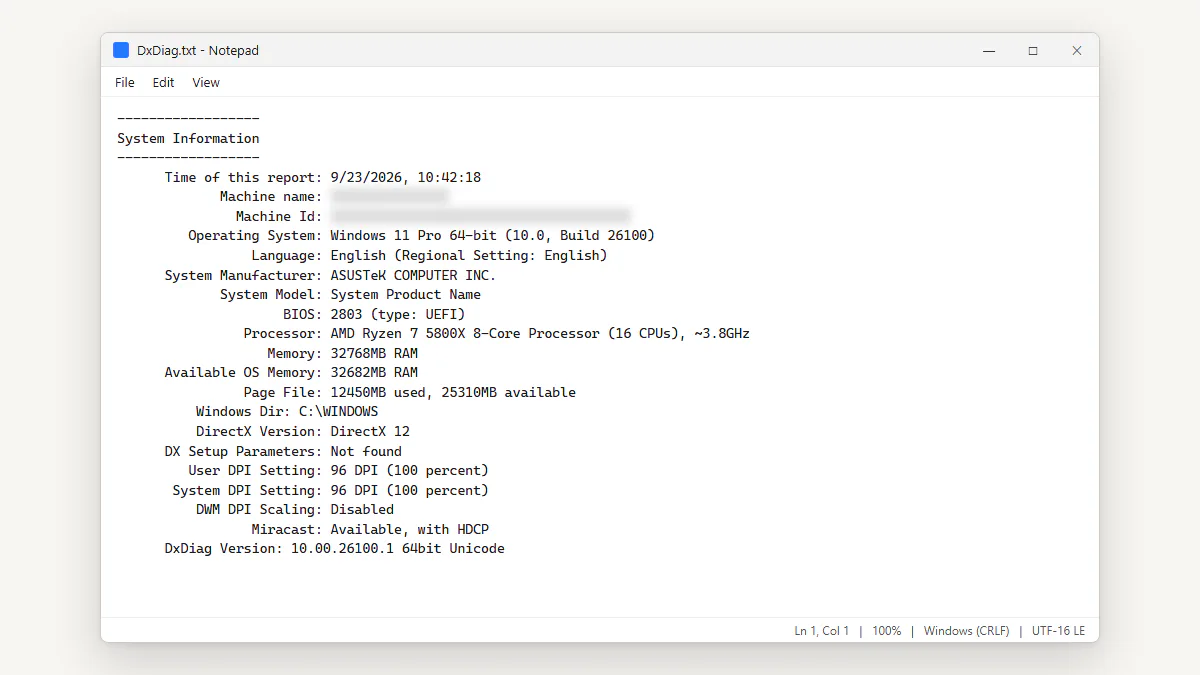
The text file follows this section order:
- System Information — OS, CPU, RAM, DirectX version, BIOS
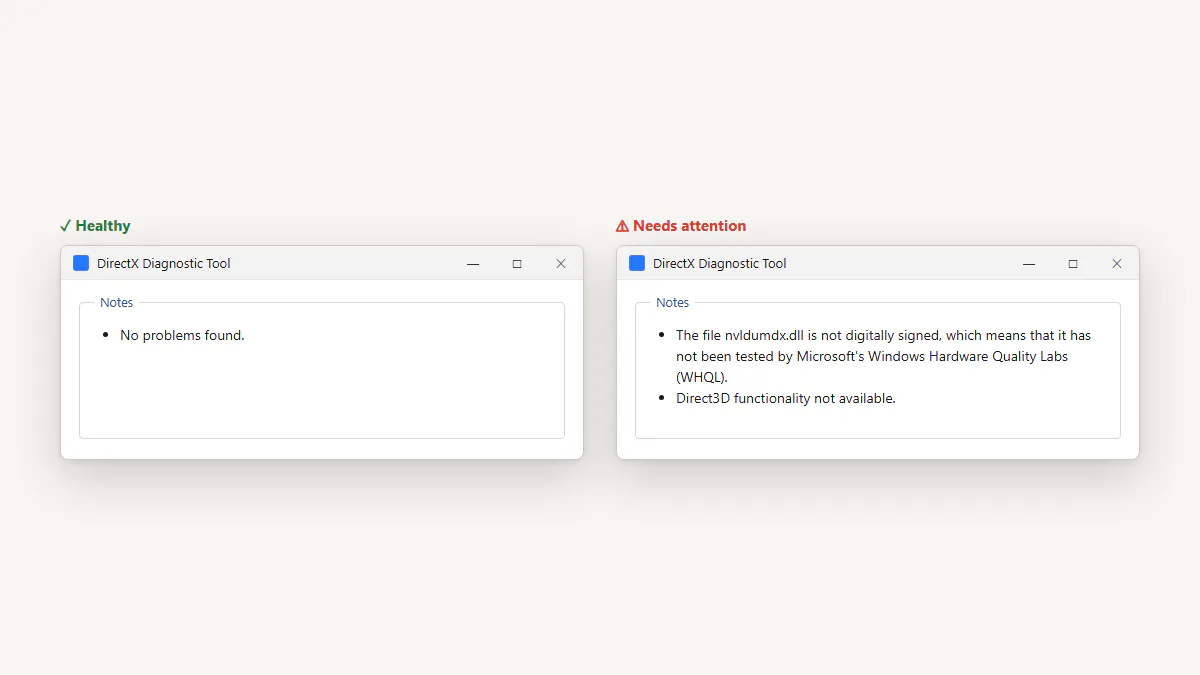
- DxDiag Notes — summary of problems (or "No problems found") for each tab
- DirectX Debug Levels
- Display Devices — GPU name, VRAM, driver, Feature Levels, Notes
- Sound Devices — audio hardware and drivers
- DirectInput Devices — keyboard, mouse, controllers
- USB Devices, Gameport Devices, PS/2 Devices
- Disk & DVD/CD-ROM Drives
- System Devices, DirectShow Filters
"No Problems Found": What It Checks — and What It Misses
The Notes box at the bottom of each DxDiag tab runs a basic diagnostic. "No problems found" means:
- The driver is loaded and responding.
- The driver is digitally signed (if you enabled WHQL checking).
- The DirectX components for that device are present and registered.
What it does not check:
- GPU overheating or thermal throttling
- RAM errors (use Windows Memory Diagnostic)
- Failing SSD/HDD (use CrystalDiskInfo)
- Malware or conflicting software
- Whether the driver is the latest version
Reading DxDiag Driver Info
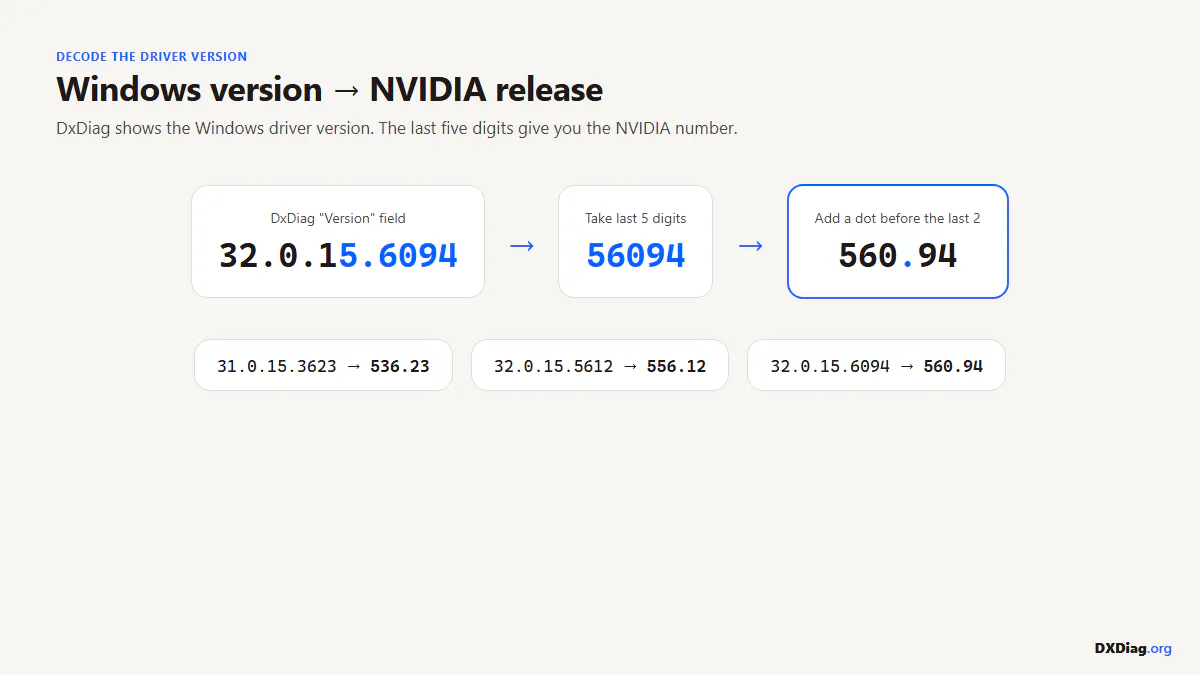
The Display Devices section in the dxdiag report includes a Driver Version number that can be decoded:
- NVIDIA: A version like
32.0.15.6636maps to NVIDIA driver 566.36. Take the last 5 digits (6636), split into two parts (66 and 36), and you get the NVIDIA release number (566.36). - AMD: AMD drivers show both the Windows driver version and the Adrenalin software version. The Adrenalin version (e.g., 24.7.1) is more useful for checking if you're current.
- Intel: Intel driver versions like
31.0.101.5768correspond directly to the Intel Graphics Driver build number.
The Driver Date tells you when the driver was released. If it's older than 12 months, consider updating.
Is It Safe to Share Your DxDiag Report?
A DxDiag report contains:
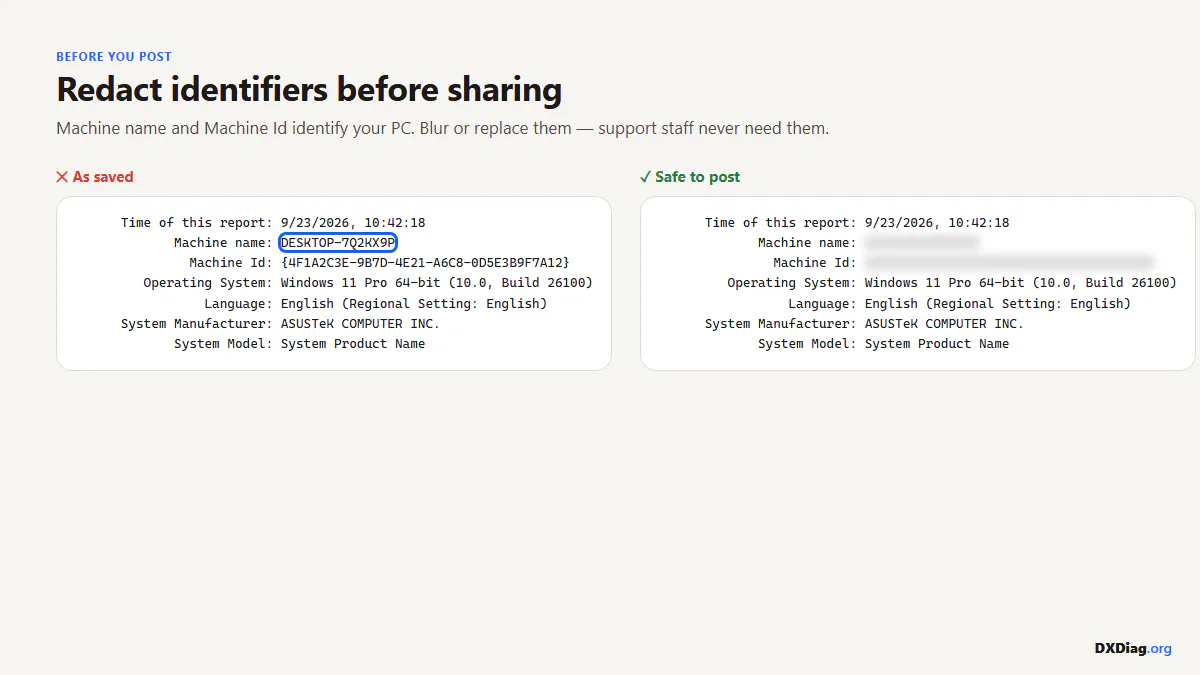
- ✓ Your PC name and Windows username
- ✓ Hardware IDs (PCI vendor/device IDs)
- ✓ OS version, CPU, RAM, GPU details
- ✗ No passwords, personal files, browsing history, or IP addresses
It's safe to send to support teams. If you're posting it publicly (forums, Reddit, Discord), blur or remove the Machine name line for basic privacy.
Where to Send It: EA, Epic, Steam, Blizzard
Most game publishers ask for a DxDiag when you file a support ticket. Here's where each one asks for it:
- EA Help: Attach the DxDiag.txt to your EA support case.
- Epic Games: Attach it to your ticket at epicgames.com/help.
- Steam: Paste it in the "System Information" box when filing a bug report.
- Blizzard: Attach to your Blizzard support ticket under Technical.
Or paste it into the Report Reader on our homepage to decode it yourself before sending.
Frequently Asked Questions
-
Save the report as a .txt file (Save All Information → Desktop), then attach it to your support ticket or email. Don't paste screenshots of DxDiag — the text file is smaller, searchable, and contains more detail.
-
Wherever you choose in the Save dialog. The default location is your Desktop or Documents folder. Via command line,
dxdiag /t C:\dxdiag.txtsaves to the C: drive root. -
It means the DirectX components and drivers for that tab passed a basic signature and status check. It does not mean your hardware is healthy overall — DxDiag doesn't check for overheating, failing drives, or RAM errors.
-
Yes. If a driver is unsigned, outdated, or failing, the Notes box on the relevant tab will say something other than "No problems found." The report also includes the driver version and date, which you can compare with the latest release.
-
No. DxDiag focuses on DirectX, GPU drivers, and multimedia devices. msinfo32 (System Information) gives a broader hardware inventory including USB controllers, IRQs, and environment variables. DxDiag is preferred for gaming and graphics support.
-
Usually 30–100 KB of plain text. Systems with many devices (multiple monitors, audio interfaces, game controllers) may produce slightly larger files, but it's always small enough to email.
-
The button appears only after DxDiag finishes scanning. Wait for the green progress bar to complete — it takes 5–10 seconds. If it never finishes, try running
dxdiag /whql:offto skip the signature check.
Decode Your Report
Paste your DxDiag report into the Report Reader to decode your hardware, check driver age, and get a copyable summary for support.